 Documentation Summary
Products And Stock
Setting Up Product And Stock Behaviour
After setting up the extension, the following product metadata fields should be created :
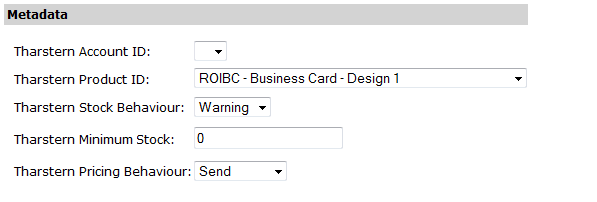
If a ‘Tharstern Account ID’ is selected here, it overrides (for the product in question) the ‘Account Code’ value specified in the Configuration. ‘Tharstern Account ID’ (or the default ‘Account Code’) is then used to populate the ‘Tharstern Product ID’ drop down list. This list gets dynamically re-populated when ‘Tharstern Account ID’ value is changed.
A ‘Tharstern Product ID’ must be selected to link the product to Tharstern. You can additionally specify Stock Behaviour, Minimum Stock level and Pricing Behaviour for the product.
The stock behaviour is determined on a per-product basis and has three distinct modes: ‘None’, ‘Warning’ and ‘Prevent’. When the product has its stock behaviour set to ‘None’, no message is displayed when the minimum stock level is exceeded and the item can be ordered as normal. When the product has its stock behaviour set to ‘Warning’, a warning message will be shown to the user if the minimum stock level is exceeded, but can still be ordered as normal. When the product has its stock behaviour set to ‘Prevent’, it will not be allowed into the basket if the minimum stock level is exceeded.
The ‘Tharstern Pricing Behaviour’ drop down list allows you to specify pricing send behaviour for a specific product. It has the following values - ‘Default’, ‘Send’, ‘Don’t Send’. When ‘Default’ is selected, the value configured in ‘Pricing Send Behaviour’ field on the Configuration page is used. If set to ‘Send’ or ‘Don’t Send’, the default value in the extension configuration is overriden.
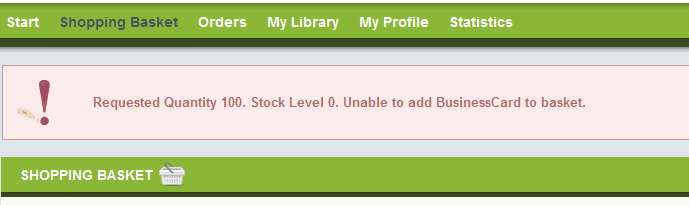
When the product has a stock behaviour set to ‘Warning’, the item can still be ordered, but a warning will be shown. When the product has its stock behaviour set to ‘Prevent’, the item is rejected, and a warning is shown to the user.
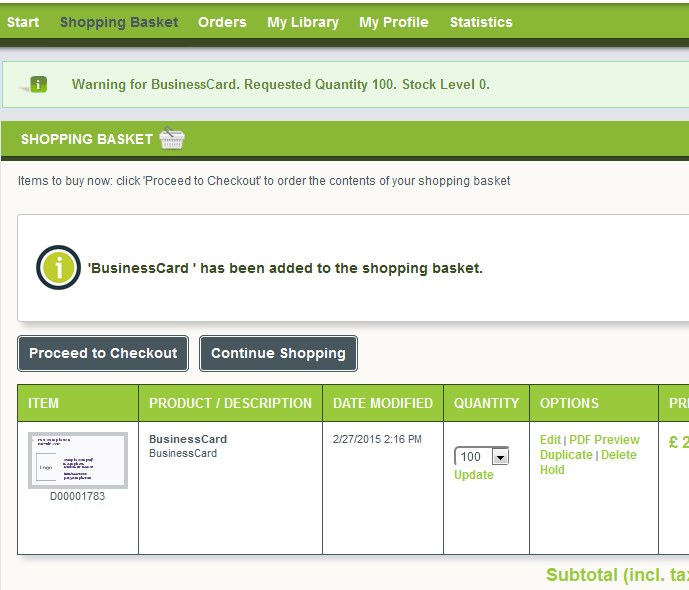
The warning messages displayed in the shopping basket are set in the extension Configuration.
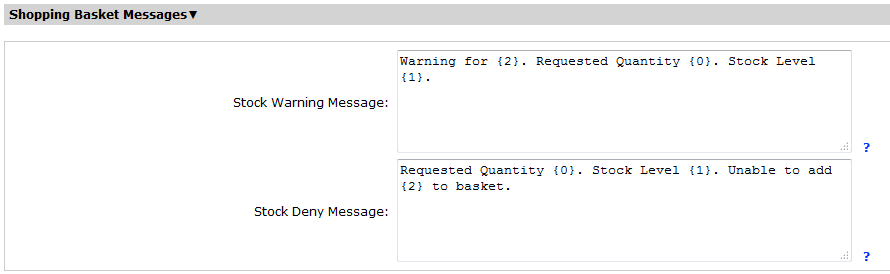
The items in in curly braces refer to variable values that can be included in the message.
{0} = Quantity Requested
{1} = Stock Level
{2} = Product Description