 Documentation Summary
Installation And Configuration
The RightMarket integration is a Storefront extension from ROI360.
The installation process consists in putting all files from the installation ZIP package to their respective target folders according to the ZIP package folder structure. This can be achieved via ROI360 extension installer or manually.
RightMarket Service Address
To configure the extension, go to ‘Administration > Extensions’ on the Storefront Administrator website.
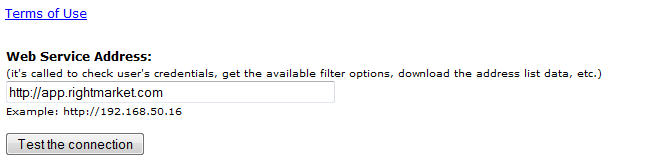
The RightMarket extension integrates Storefront with RightMarket which is an externally hosted service that allow users to acquire marketing data. The RightMarket extension needs to “know” the location of the RightMarket server. It is currently located at http://app.rightmarket.com. Please enter this address in the Web Service Address field and then “Update” the extension settings (this is a button near the top of the web page). Once updated, go back to the extension settings and click “Test the connection to the web-service” button to verify that the extension is able to communicate with the RightMarket service. If everything works fine, the message “Connection works fine” should be displayed. If the Web Service Address is not correctly configured or there is a network communication error, the message “Connection does not work” will be displayed.
Linking Storefront To RightMarket Accounts
Before the RightMarket extension can be used to acquire data, Storefront user accounts must be linked to RightMarket user accounts. RightMarket and Storefront accounts are linked using what is called an “Authentication Key”. For details see the Authentication Keys page.
Other Settings
In this section it is possible to configure settings that affect error reporting, logging and user interface options.
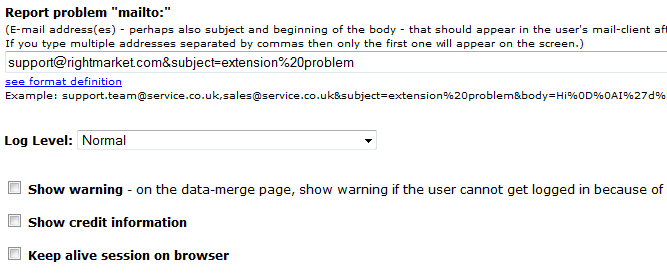
“Report problem mailto” is used to set the e-mail address to which errors should be reported. It is also possible to add subject and the initial part of e-mail message body text.
“Log Level” can be set to “Normal” or “Debug”. In debug mode the system stores more detailed log records which is useful only when tracking problems. This feature should be used with care because of the higher volume of logging data stored.
“Show warning” checkbox - when checked, this option causes an error message to be displayed to the Storefront user when the RightMarket service cannot be accessed, including but not limited to no authentication key being given, extension incorrectly configured, or RightMarket service being unavailable.
“Show credit information” checkbox causes the RightMarket credit information to be displayed to the user. More information on credits can be found on the Users and Credit page.
Web.config Settings
The RightMarket extension communicates with the RightMarket server using JSON through a proxy web service. During the filter selection process, sometimes the server returns a large list of values (especially counting Postal Sectors, Postal Districts and Towns). In these cases, the browser will display an error message and no filter result are shown. To prevent this error, the extension installer makes the following modification in the WebPages\web.config configuration file. If needed, please, edit the WebPages\web.config file manually and after the “</system.web>” add the following section. However, make sure that you do not duplicate any config sections i.e. if the config section already exists then please add/modify the existing one.
<system.web.extensions>
<scripting>
<webServices>
<jsonSerialization maxJsonLength=”50000000”/>
</webServices>
</scripting>
</system.web.extensions>