 Documentation Summary
Setting Up
Installation
The Extension should be installed by using the Manage website, the Extensions > Install/Update option.
Files
WebPages/bin/Extensions/NewTemplateNotifications.dll
WebPages/ROI360/New Template Notifications/Interface.ashx
WebPages/ROI360/New Template Notifications/Email - Body.htm
WebPages/ROI360/New Template Notifications/Email - From.txt
WebPages/ROI360/New Template Notifications/Email - Subject.txt
Extension Configuration
When the Extension is first installed on a site, it is necessary to log in to the admin-site and go Administration > Extensions. The list of all installed extensions appears. Find the link to this newly installed Extension and click it. On the Extension Configuration page, click Active Yes and then Update.
This will check if the Scheduled Task “New Template Notifications - Look For New Releases” exists. If not, it automatically creates it. Due to a previous installation, the task may be present, however, hidden in the Archive. Such an archived task either needs to be re-activated or deleted in order for the check to automatically create a new one.
The Scheduled Task doesn run if the Extension is Active No.
Displaying the Extensions list also makes sure the UserProfileField “UserProfileNewTemplateNotifications” exists as well. The presence of the field can be checked on Users > Profile Fields > the tab User Profile.
The Scheduled Tasks admin option is normally hidden, but can be checked by visiting:
https://sitename.rightmarket.com/AdminScheduledTasks.aspx
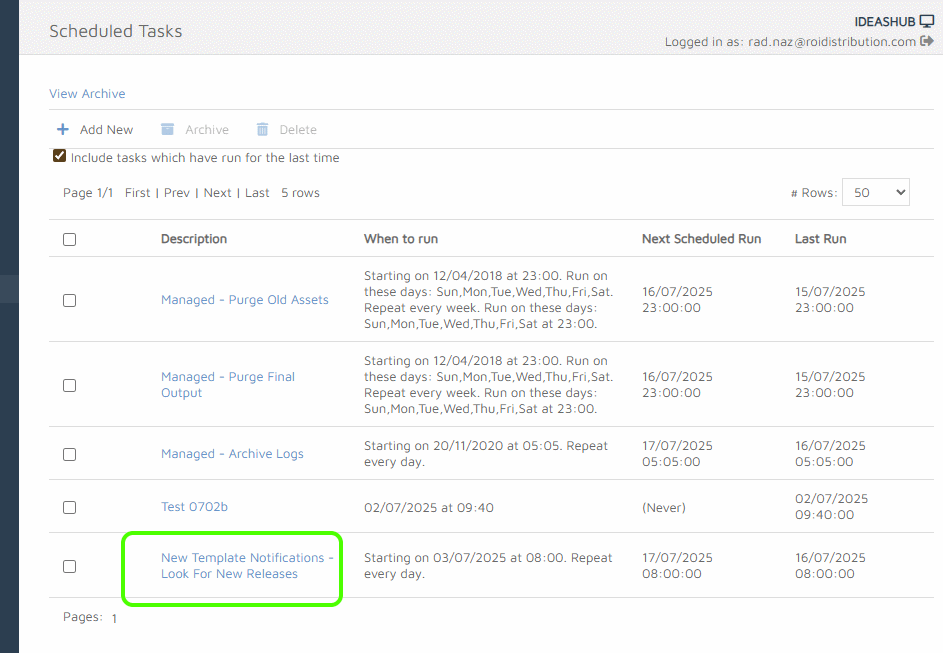
The Scheduled Task should run every morning at 8 o’clock but it activates the check only on the first Monday of the configured months. In order to stop the task, on the Extension Configuration page, the Active No option must be selected and the Update button needs to be clicked.
The Extension Configuration page looks like this:
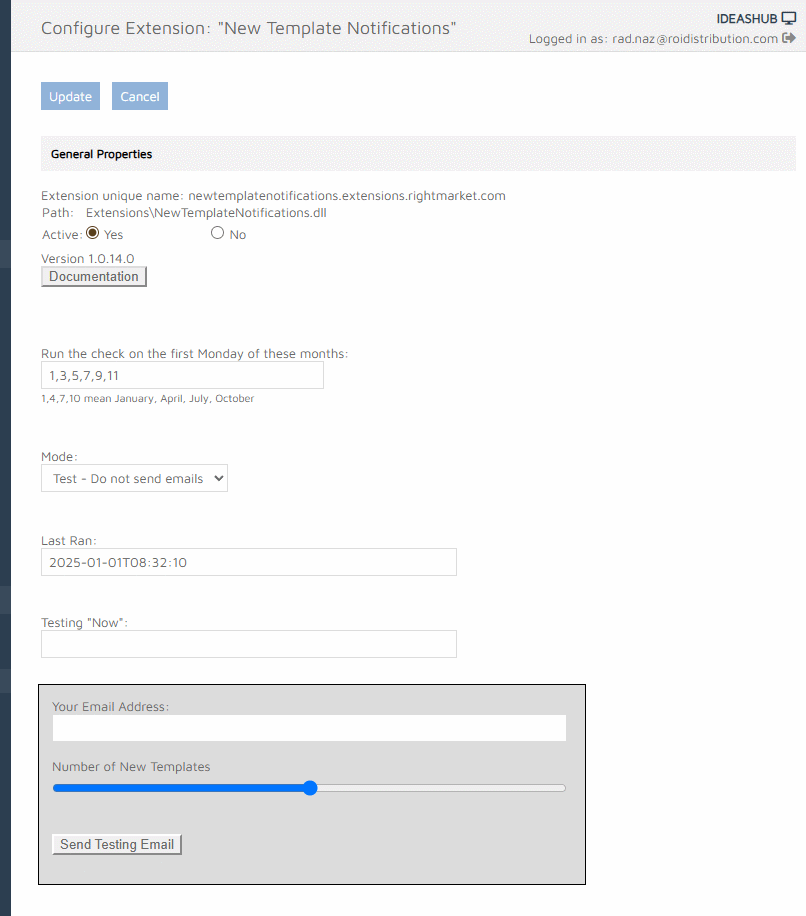
Months - this text-field is self-explanatory. The default value is 1,3,5,7,9,11
Mode - three options are available:
- Live (default)
- Test - Send emails
- Test - Do not send emails
In the both Test modes, the Testing “Now” field is respected and the Last Ran field is editable. No emails are sent in the mode Test - Do not send emails. They are only recorded in the folder WebPages/ROI360/New Template Notifications/Log/<date>/Email.
The Last Ran date - this is where the date and time of the last run is recorded. The value can be changed if one of the two Test modes is selected. It is useful for testing longer and shorter timeframes. The date and time uses the ISO format 2025-12-24T23:59:59
Testing “Now” - this date and time value only applies if one of the two Test modes is selected. It can be used to enter a date and time, in order to force the scheduled task to run immediately. The testing run uses this date and time as the current time. The tester can then observe the effect (if the run activates the check and how the result is written in the WebPages/ROI360/New Template Notifications/Log folder).