 Documentation Summary
Setting Up
Installation
The Tone of Voice Assistant should be installed via https://manage.rightmarket.com.
The installation should include the following files:
WebPages/AdminRMWCDictionary.aspx
WebPages/bin/AzureEventLogger.dll
WebPages/bin/Extensions/RightMarket-WordChecker.dll
WebPages/ROI360/WordChecker/AbbreviationsForDiseases.txt
WebPages/ROI360/WordChecker/AdminBody.html
WebPages/ROI360/WordChecker/AdminHead.html
WebPages/ROI360/WordChecker/Configurations.xml
WebPages/ROI360/WordChecker/HealthcareEuphemisms.txt
WebPages/ROI360/WordChecker/informed-darkred.html
WebPages/ROI360/WordChecker/informed-orange.html
WebPages/ROI360/WordChecker/informed-vividblue.html
WebPages/ROI360/WordChecker/Interface.ashx
WebPages/ROI360/WordChecker/UserBody.html
WebPages/ROI360/WordChecker/UserHead.html
The following files will be in the package but will not be installed:
install.config
Inventory.config
Configuration
The Tone of Voice configuration page should be visible on the left hand navigation under “Content > Tone of Voice”. If it is not visible here, check the extension settings to ensure it is turned on Administration > Extensions > Tone Of Voice Assistant. If the extension isn’t visible, contact Support.
Within the configuration page there are a number of options:
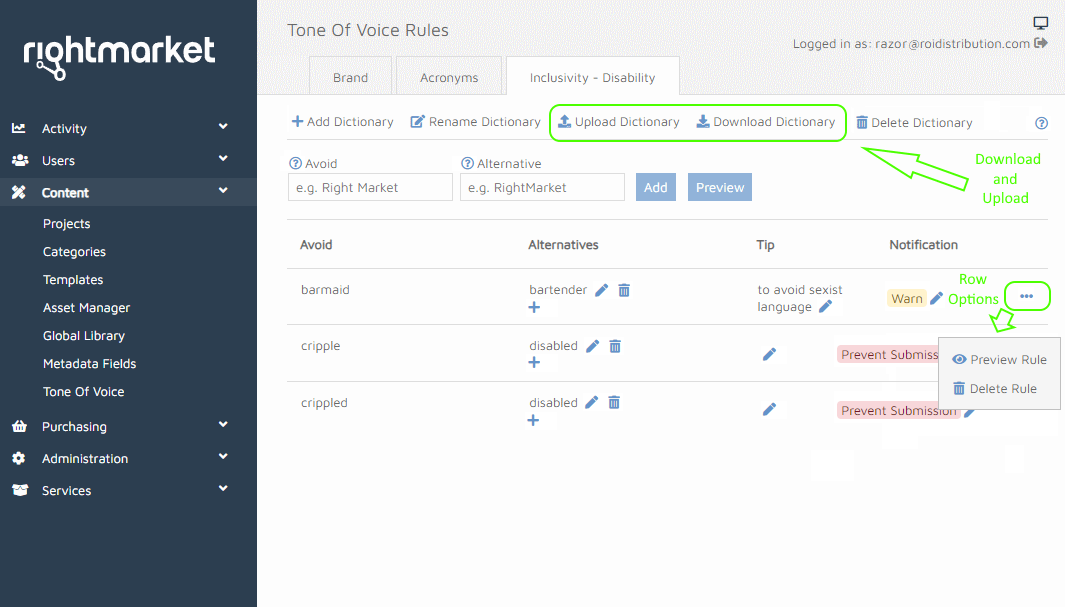
Add Dictionary - Use this button to setup the initial dictionary. If required, multiple different dictionaries can be added to the system (e.g. One for Brand wording, and another for Acronyms).
Rename Dictionary - This button allows you to rename a previously created dictionary.
Upload Dictionary - A CSV of dictionary items can be uploaded here.
Download Dictionary - This will download the current dictionary as a CSV.
Delete Dictionary - This will delete the current dictionary. This cannot be undone.
There are also options to add expressions to the dictionary. An expression is what we refer to when looking at “Avoid Alternative Notification”.
Avoid - Here enter a term that should be avoided.
Alternative - click the plus icon in the Alternatives column to add an alternative to your term to avoid. The very first alternative can be added together with the new term to avoid by filling both the Avoid and Alternative boxes, and then clicking the Add button.
Note: All of the above options apply to whichever dictionary you have currently selected on the page (except the Add Dictionary option).
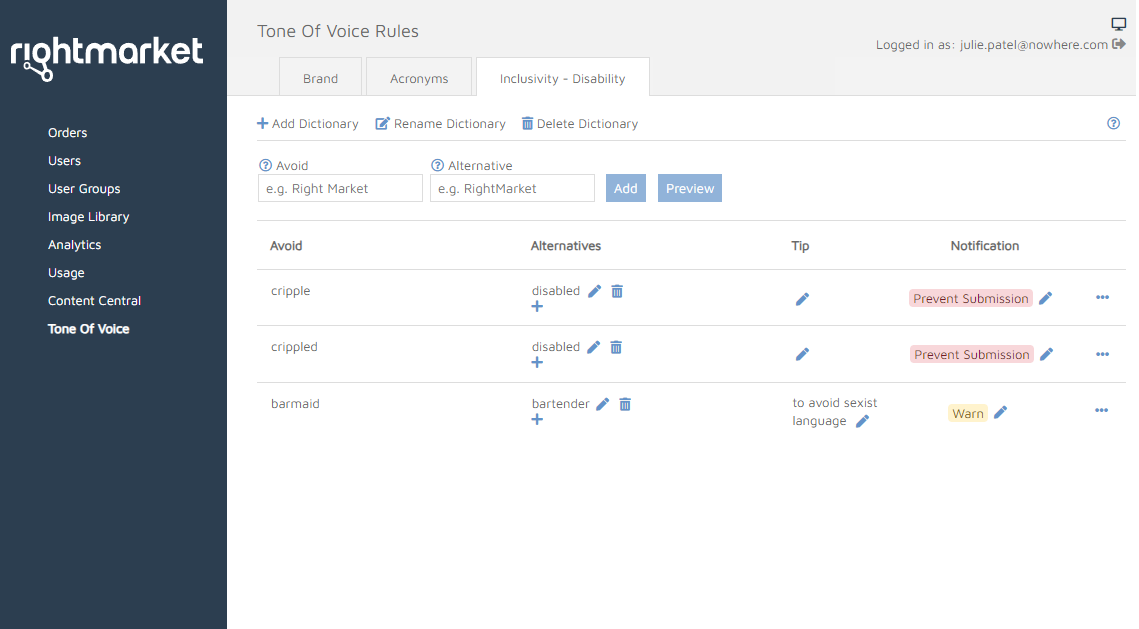
Admin Site Dictionary
Adding Content
To add expressions, fill in the boxes and hit the Enter key, or click the Add button. In order to add more alternatives for one avoided expression, keep the same text in the Avoid box, type another alternative and hit Enter. The number of alternatives is not limited.
The Alternative field can be left blank if an alternative suggestion is not needed. In this case, users will simply be shown a warning.
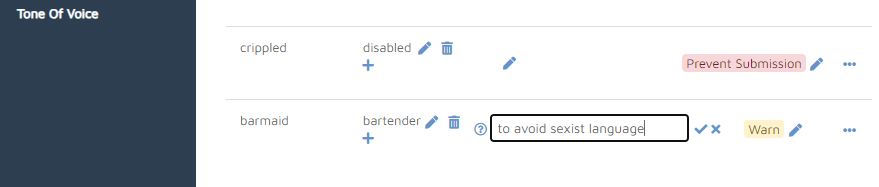
Tips
In order to add a Tip or make the Notification prevent the submission of the template form, click the pencil icon and edit the particular piece of data.
Prevent Submission vs Warn
If the expression is supposed to prevent submission of the form on the Document Customise page, please choose the Prevent Submission option in the Notification drop-down box. For such an expression, a red warning is shown on the user-form and the document can’t be completed unless the expression is either removed or corrected in the form’s text-box.
Case Sensitivity
To enforce case sensitivity on a word, enter the same word twice, with an incorrect casing in the avoid box and the correct casing on the alternative.
Symbols
The Tone of Voice Assistant is compatible with symbols when entering terms to avoid, though when detecting words it treats certain characters, such as full stops and spaces as word separators for the purposes of matching terms. When avoiding special characters, those characters are matched exactly; to avoid all variants of a special character, all variants will need to be included in the terms to avoid. For example, en dashes (–), em dashes (—) and hyphens (-) are treated differently, as are apostrophes (‘) and single quotes (‘)). Writing style guides will often state a preference for when to use each version.
Validation
When adding and updating rules, there is validation in place to check if:
- the rule already exists in the dictionary
- the rule already exists in another dictionary (on another tab)
- there already exists a shorter or longer version of the term to be added
- there already exists the same letter-case rule specified with a different letter-case
Previewing Rules
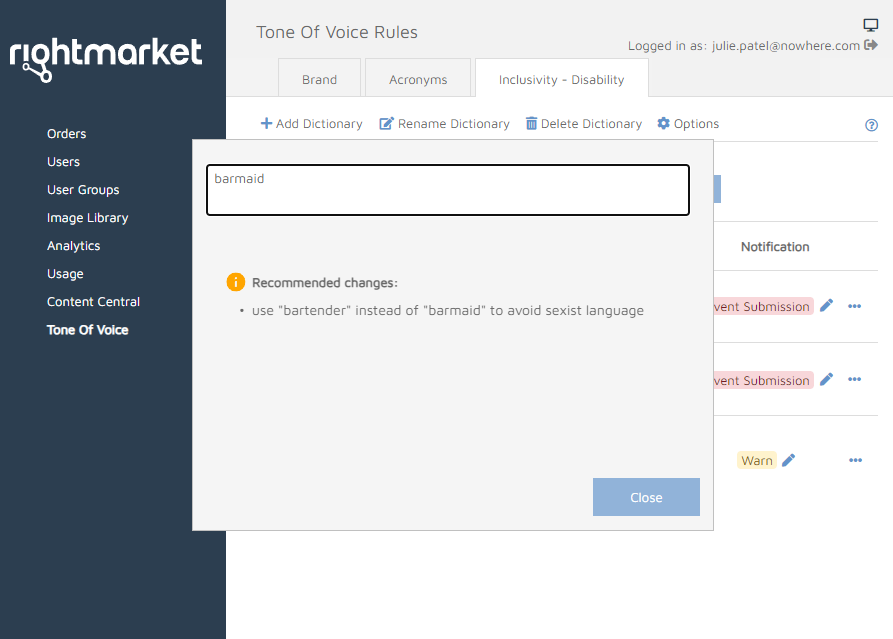
Clicking the row options icon … on the right and then selecting Preview brings up a dialog where an admin can enter text to preview how the Tone of Voice assistant will respond. The text is checked on every key-stroke and warnings are shown just like on the User Site when editing design text-fields.
Hitting the top-bar Preview button shows the Preview frame as if the term you’re about to add was already added in the dictionary. This is how the appearance of a new rule on the User Site can be tested before it is added.
Deleting Content
To delete an expression including all of its alternatives, on the right side, click the row options … icon and select Delete. To delete only one of the alternatives, click the cross behind the alternative.
Download and Upload
These features are only available to administrators in the internal group. They are not available for customers. The current dictionary (expressions on the selected tab) can be downloaded by hitting the Download Dictionary link. The data is written in the CSV format which can be edited in any table processor.
In order to quickly upload a large list of terms to avoid,
click the Upload Dictionary button and select your source CSV file.
If a term to avoid already exists in the dictionary, it is updated rather than added again.
If a term is already present in another dictionary (on another tab), it is not added again.
See #uploading-csv-files
for more advice on uploading dictionaries.
Global Options
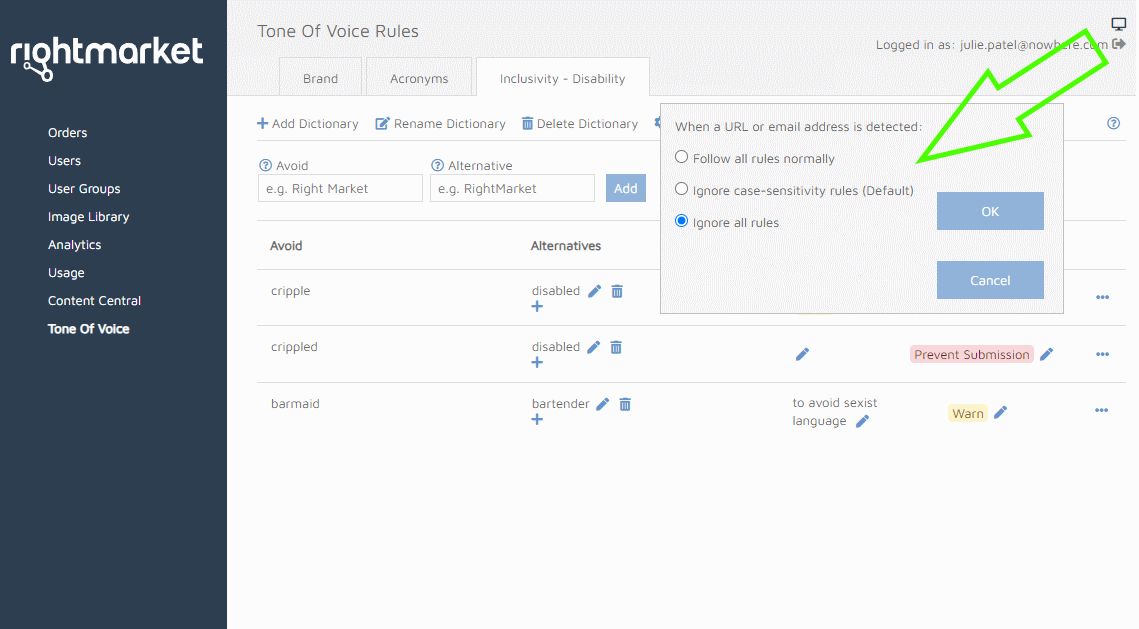
Clicking the Options menu item opens a dialog where the Ignore cases can be configured.
The default option is to ignore rules which correct wrong letter-case inside an email address or a URL. Example:
If the dictionary contains a rule uos > UOS, it will be ignored in addresses, such as ann@uos.ac.uk
The Ignore All option makes all rules ignored once the phrase is a part of an address. Example:
The rule uos > University of Suffolk will be ignored as well in ann@uos.ac.uk
Appearance
The markup of the visuals can be customised in:
WebPages/ROI360/WordChecker/