 Documentation Summary
User Experience
Selecting from Third Light Chorus
When ‘Selection from DAM’ is enabled in the admin area for the image field, the ‘Select from Chorus’ button is shown next to the Storefront standard ‘Upload’ button on the image selection popup within the ‘Customize’ page. The modal popup now shows the content of the global and user image libraries (depending on the deployment settings).
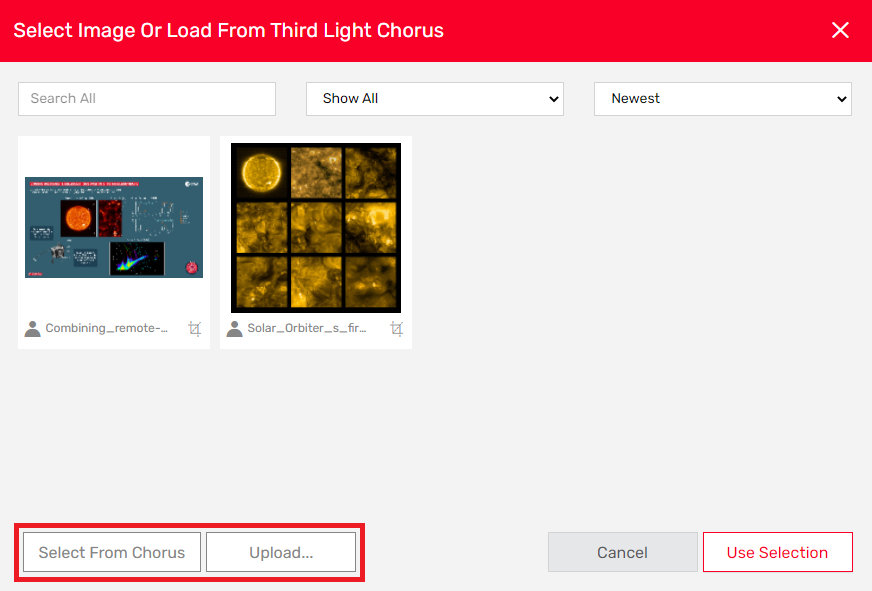
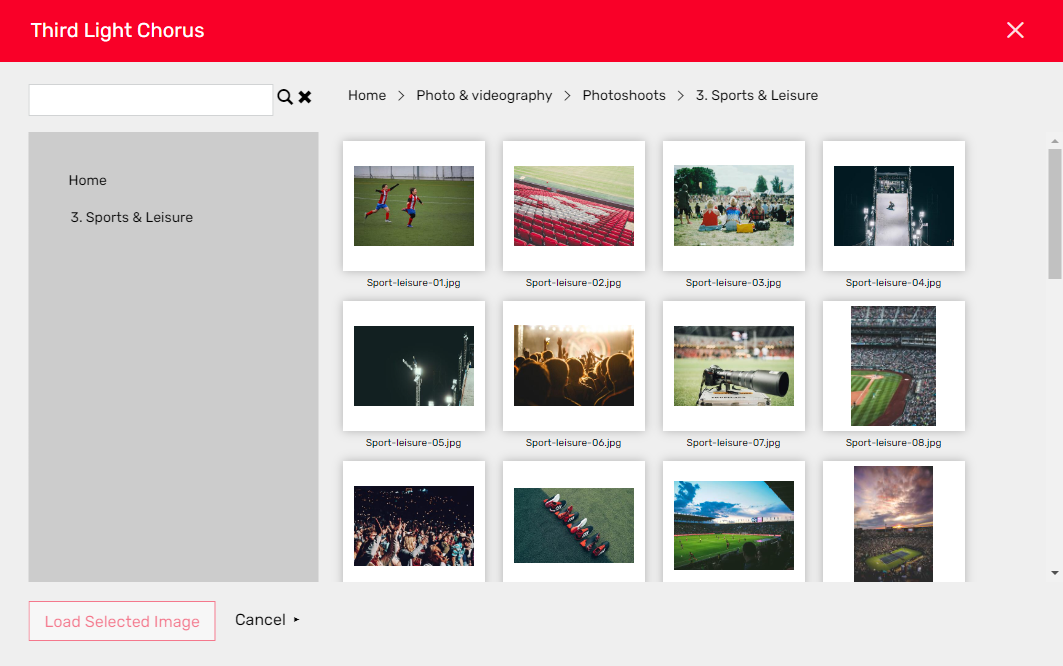
Click the ‘Select from Chorus’ button to show the content of the Third Light Chorus repository available to the user. Click on folders to browse through them or on images to select them. Use the arrow icon to navigate back to the list of Third Light Chorus collections. To load the image from Chorus to Storefront just select the image and click the ‘Load Selected Image’ button. Alternatively you can just double click the image and it will be loaded to Storefront directly.
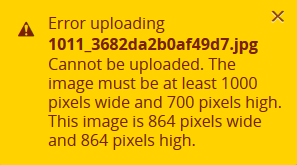
When the image is downloaded, the image size is evaluated and if the downloaded image does not meet the criteria defined for the image field, a warning is shown and the download of the file is cancelled. This behaviour depends on the Storefront Upload button being enabled (depending on image field settings).
If the selected image meets the size criteria (if configured), the image is added to the Storefront image selection popup.
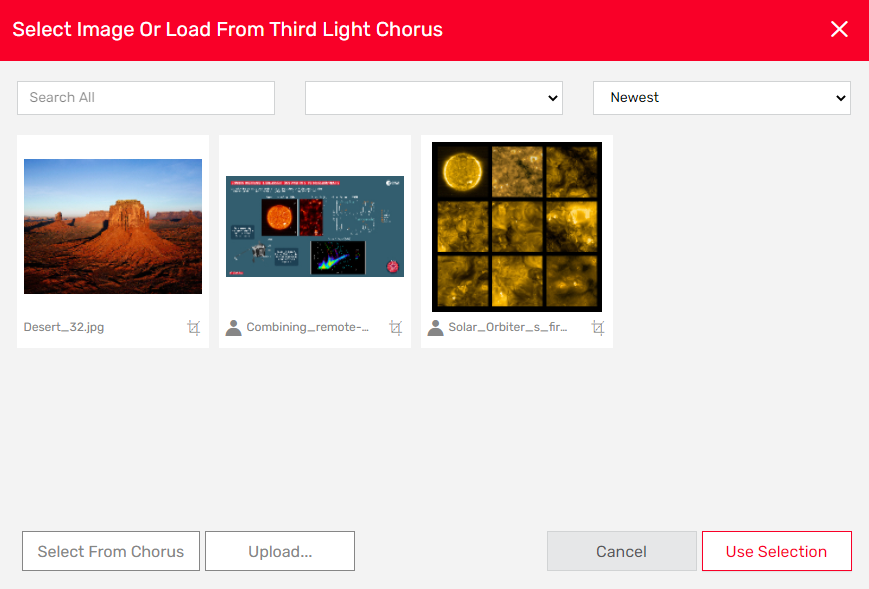
In the last step of the image acquisition process you can select the newly downloaded image and click the standard Storefront ‘Use Selection’ button.
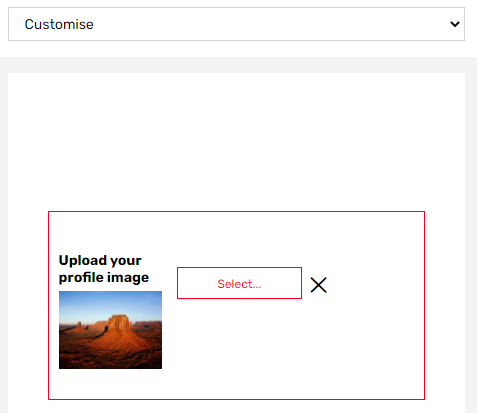
The images downloaded from the Third Light Chorus are only kept temporarily for the currently processed document unless edited, in this case the edited image is kept in the user’s image library or discarded depending on the image field configuration.

An error message is displayed to the user if the logged in user does not have access to the selected assets (See Setting Up for details) or the API Key used for the connection to Third Light Chorus is invalid.
Search
The search behaviour is identical to entering a text string in the search bar in the Chorus UI: the scope of the search is limited to the files accessible by the API session, and the metadata fields searched are those included in ‘General’ search in the Chorus catalogs accessible by that user.
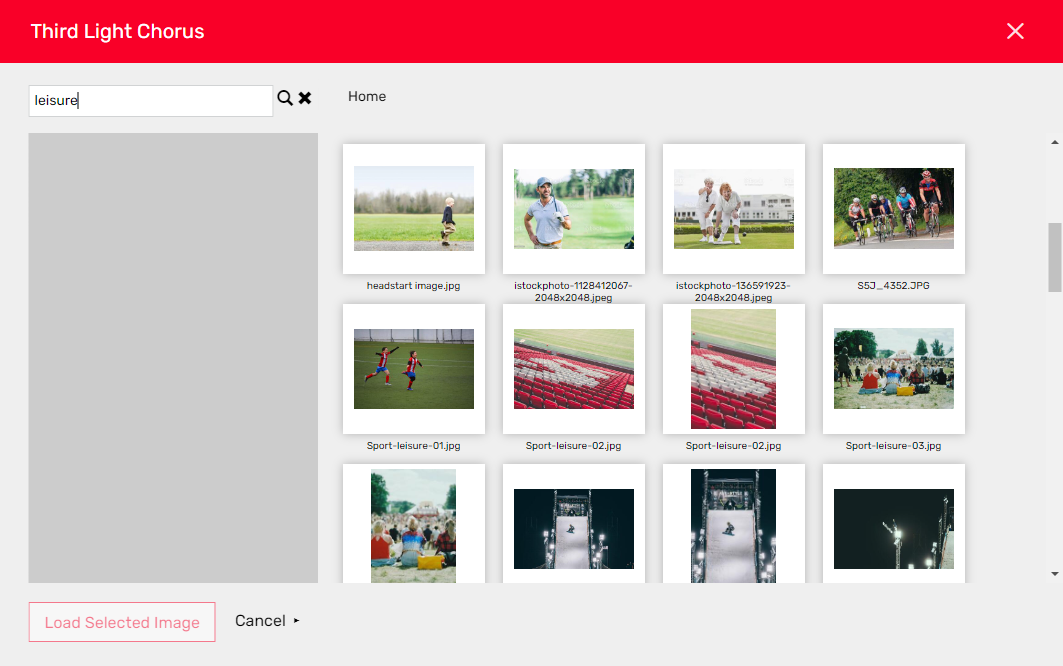
Click the reset button to clear the search results and return to the list of collections.