 Documentation Summary
Setting Up
To configure the extension, navigate to the extension’s administration page.
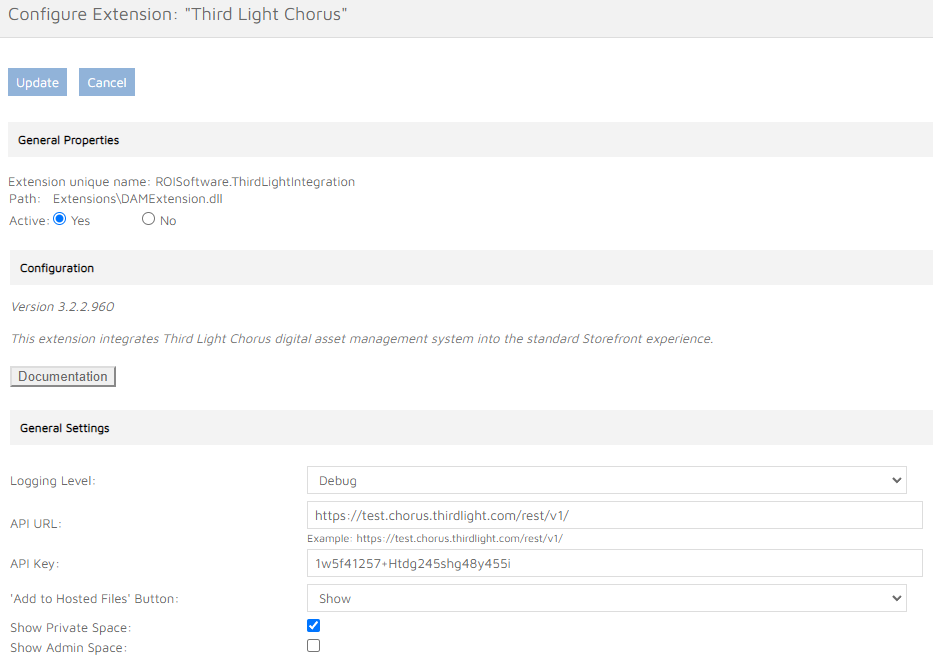
Logging Level
Select logging level depending on the requested detail level of the information logged.
Standard - only errors during image acquisition and processing are logged.Debug - all results of Third Light Chorus API calls are logged in detail.
The Standard logging level is preferred to make it easier to spot errors.
API URL
Specify the API URL of the Third Light Chorus account (e.g.: ‘https://test.chorus.thirdlight.com/rest/v1/’).
API Key
Specify the API Key to access Third Light Chorus. The API Key is used for common access to Third Light Chorus for all Storefront users. Navigate to the Third Light Chorus User Profile > ‘More actions…’ > ‘API Keys’ to obtain a valid API Key for the user account intended to be used as the API client for the deployment.
‘Add to Hosted Files’ Button
Images uploaded from Chorus are not saved to the user’s image library in Storefront. The ‘Add to Hosted Files’ setting determines whether to show or hide the ‘Add to Hosted Files’ button for newly cropped and uploaded images. Please note, this setting applies to all cropped and uploaded images, not just those uploaded from Chorus.
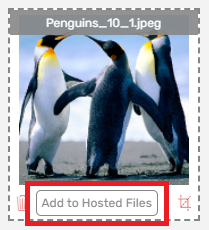
Show - cropped and uploaded images can be saved to the user’s image library.Hide - cropped and uploaded images cannot be saved to the user’s image library. This feature replaces the ‘Hiding Crops’ setting for Storefront versions prior to 9.4, and preserves the previous setting on upgrade.
Chorus Spaces And Browsing Experience
Spaces are the key logical entities that allow administrators to structure the Third Light Chorus content. Typically they correspond to departments within the organisation or other organisational units (project teams etc…).There are two main types of spaces - Private and Site spaces. Private space is always accessible by one user only.Site spaces are accessible by any user that is a member of the relevant space. Spaces can contain sub-spaces and/orfolders/collections.
Chorus uses the concept of granular permissions for each Space. Two of those permissions are particularly important for this integration. The ‘View’ permissions determines what the users can see in the asset picker. The ‘Share Link’ permission has to be enabled for users to be able to download asset, or they will see an error when attempting to download it.
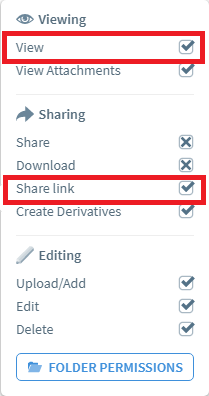
Show Private Space
By default, only Site Spaces are shown in the Form Filling digital asset picker. When the option is selected, a combined list of user’s Private Space and Site Spaces would be available to browse in the asset picker.
Show Admin Space
When this checkbox is selected, the “Admins” Space is shown in the Form Filling asset picker if the corresponding user in chorus is an admin.
User Settings for API Key
The global credential settings for the deployment can be overridden on per-user basis using user profile fields. This is a way to show different Space structure in the asset picker to each Storefront user. When this field is left empty, the global API Key is used instead. Navigate to the Third Light Chorus User Profile > ‘More actions…’ > ‘API Keys’ to obtain a valid API Key.

Image Fields Configuration
Each product’s image fields need to be configured to specify if Third Light Chorus is available for users to select images from. The Third Light Chorus settings are available at the bottom of the ‘Form Filling Field Definition’ pane of the ‘Customise Form Filling’ admin page.
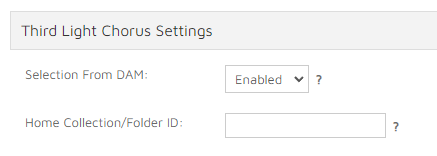
Selection From DAM
Selecting from DAM can be enabled for the selected image field by setting the dropdown value. When enabled a new button is added to the Form Filling image selection dialog on the user site (for the particular image field).
Home Collection/Folder ID
Specify the ID of the Third Light Chorus folder or collection that should be use as the starting location displayed after the image selection dialog is opened (e.g.: ‘11113346-bc75-11ea-8e6a-000c29e92f5b’). You can obtain the ID in the Third Light Chorus web application by selecting the relevant folder and going to Edit…’ > ‘Actions - GUID. Activating this feature disables the search functionality..