 Documentation Summary
Setting Up
Configuration
To configure the extension, navigate to the extension’s administration page.
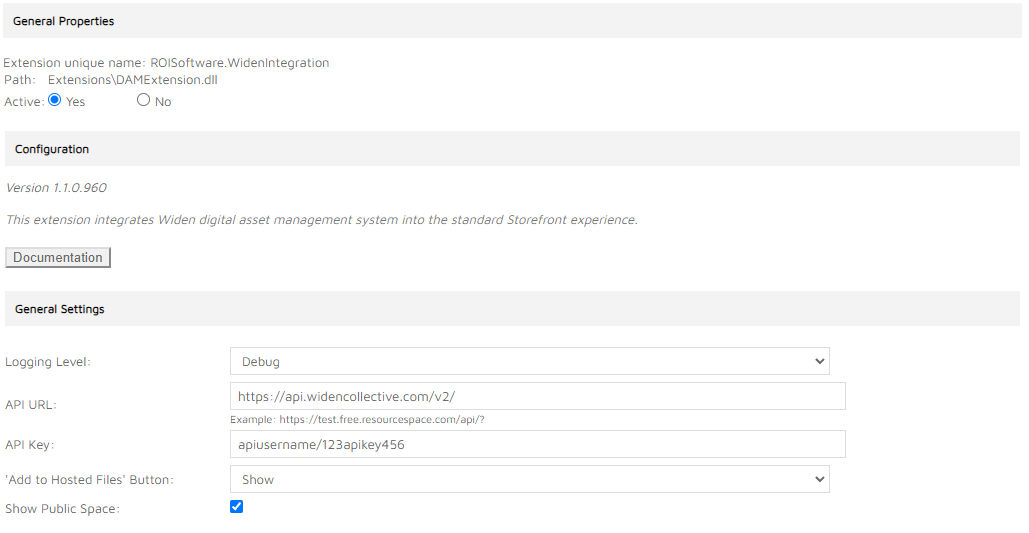
Logging level
Select logging level depending on the requested detail level of the information logged.
- Standard - only issues during image acquisition and processing are logged.
- Debug - all results of ResourceSpace API calls are logged in detail.
The Standard logging level is preferred to make it easier to spot genuine issues.
API URL
Specify the API URL of the ResourceSpace client account (e.g.: ‘https://api.widencollective.com/v2/’).
API Key
Set up the API key in format
username/APIkey
Add to Hosted Files’ Button
Images uploaded from Widen are not saved to the user’s image library in Storefront. The ‘Add to Hosted Files’ setting determines whether to show or hide the ‘Add to Hosted Files’ button for newly cropped and uploaded images. Please note, this setting applies to all cropped and uploaded images, not just those uploaded from Widen.
- Show - cropped and uploaded images can be saved to the user’s image library.
- Hide - cropped and uploaded images cannot be saved to the user’s image library.
This feature replaces the ‘Hiding Crops’ setting for Storefront versions prior to 9.4, and preserves the previous setting on upgrade.
Show Public Space
By default, only private Widen folders of the user are shown.
When selected, a combined list of user’s Private Space and Public Spaces would be available to browse in the asset picker.
For public space image files, the files available user depend on the Widen permissions.
Image Field Configuration
Each product’s image fields need to be configured to specify whether Widen DAM should available for users to select images from.
The Widen settings are present at the bottom of the Form Filling Field Definition page.

Strings
This integration allows administrators to make changes to the default text strings that appear in the user interface using a WidenIntegrationResource.resx file.
The strings file is placed in the \Custom\WidenIntegration folder.
The strings that can be modified using this method are:
- The title of the standard Storefront image selection popup dialog:
- string name “Modal_Title_ImageSelect”
- default value “Select Image Or Load From The Library”
- The text on the “Select from The Library” button:
- string name “Button_Caption_SelectFromDAM”
- default value “Select from The Library”
- The Tooltip of the “Select From The Library” button:
- string name “Button_Tooltip_SelectFromDAM”
- default value “Allows selecting an image from The Library
- The alert box displayed when no image is selected in the The Library popup:
- string name “Alert_Select_Image”
- default value “Please, select an image.”
- The title of the “The Library” popup:
- string name “DAM_Modal_Title”
- default value “The Library”
- The caption of the “Cancel” button:
- string name “DAM_Modal_Button_Cancel”
- default value “Cancel”
- The caption of the “Load Selected Image” button:
- string name “DAM_Modal_Button_LoadSelectedImage”
- default value “Load Selected Image”
- The caption of the “Search” button:
- string name “DAM_Modal_Button_Search”
- default value “Search”
- The caption of the “Reset” button:
- string name “DAM_Modal_Button_Search_Reset”
- default value “Reset”
- The error message when the user does not have view permissions or API Key is invalid:
- string name “DAM_Modal_Not_Found”
- default value “No valid resources found, please contact your administrator.”
- The error message when the user does not have download permissions:
- string name “DAM_Modal_Download_Not_Found”
- default value “You do not have permission to download this asset.”
- The label of the content loading animated overlay:
- string name “DAM_Modal_Loading”
- default value “Loading…”
- The caption of the “Go Back” icon:
- string name “Go_Back”
- default value “Go Back…”