 Documentation Summary
Functionality
Selecting from Widen
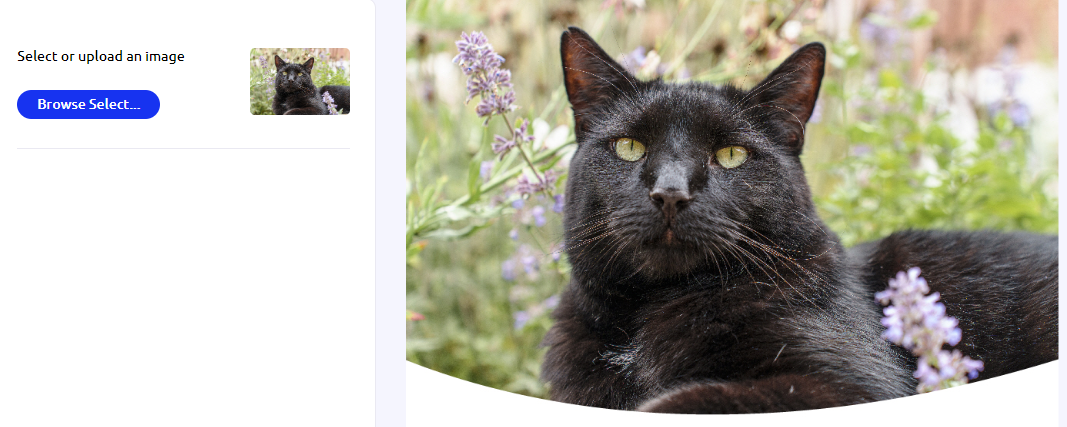
When “Selecting from DAM” is enabled for the image field, the “Select from The Library” button is shown next to the Storefront Browse from computer Upload button on the image selection popup within the Customize page.
The modal popup now shows the content of global and user image libraries (depending on the deployment settings).
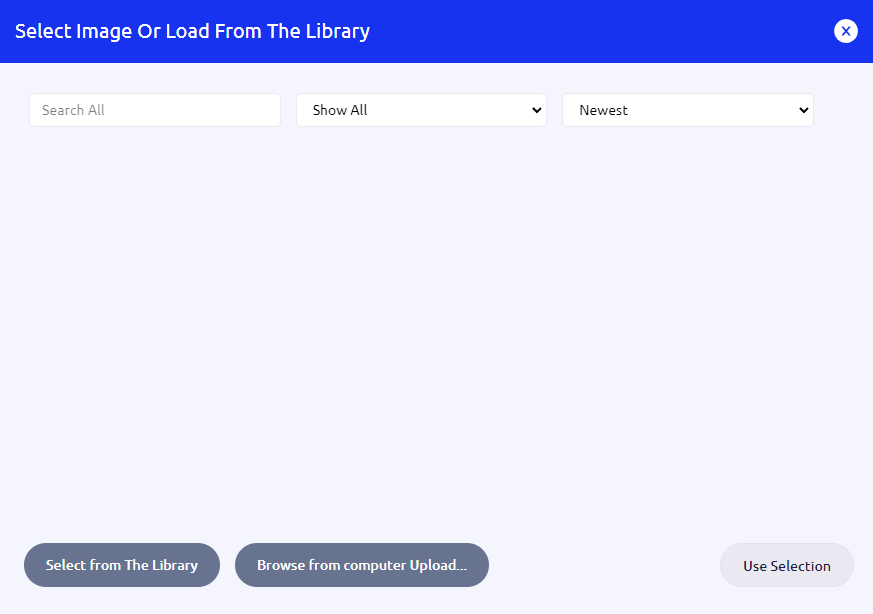
The Storefront Browse from computer Upload button button can be hidden by the extension depending on the image field settings.
Click the “Select from The Library” button to show the content of the Widen repository available to the user.
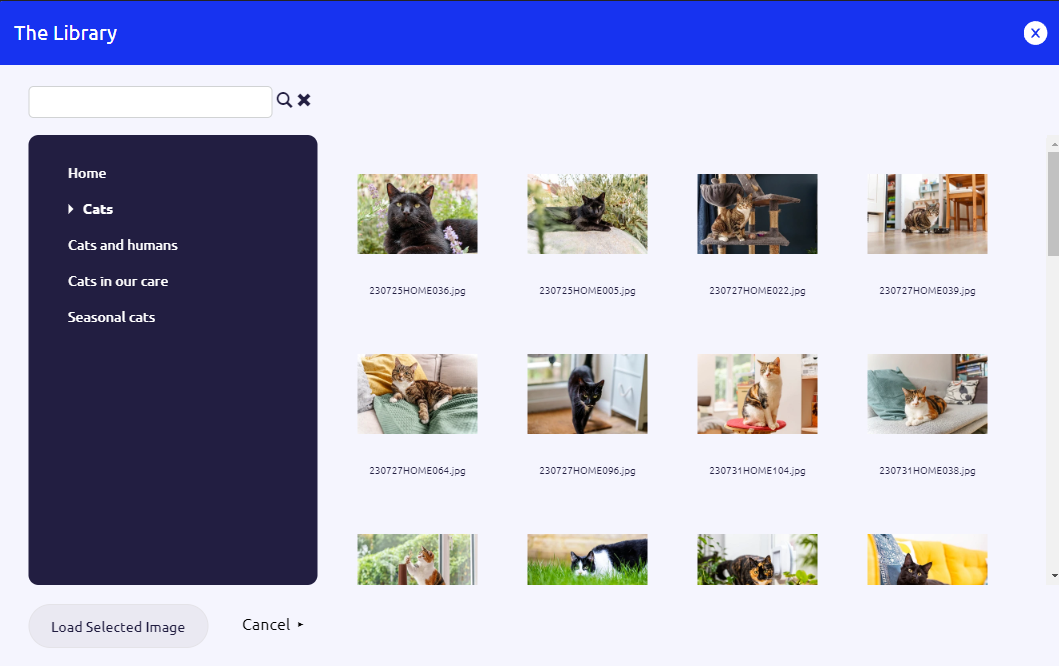
Click on folders to browse through them or on images to select them. Double clicking on an image does the equivalent of selecting and loading it directly without having to click the “Load Selected Image” button.
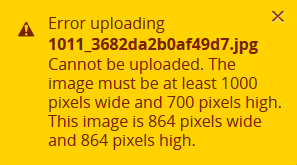
When the image is downloaded, the image size is evaluated and if the downloaded image does not meet the criteria defined for the image field, a warning is shown and the download of the file is cancelled. This behaviour depends on the Storefront Upload button being enabled (depending on image field settings).
If the selected image meets the size criteria (if configured), the image is added to the user’s Storefront library and can be selected as for the image field.
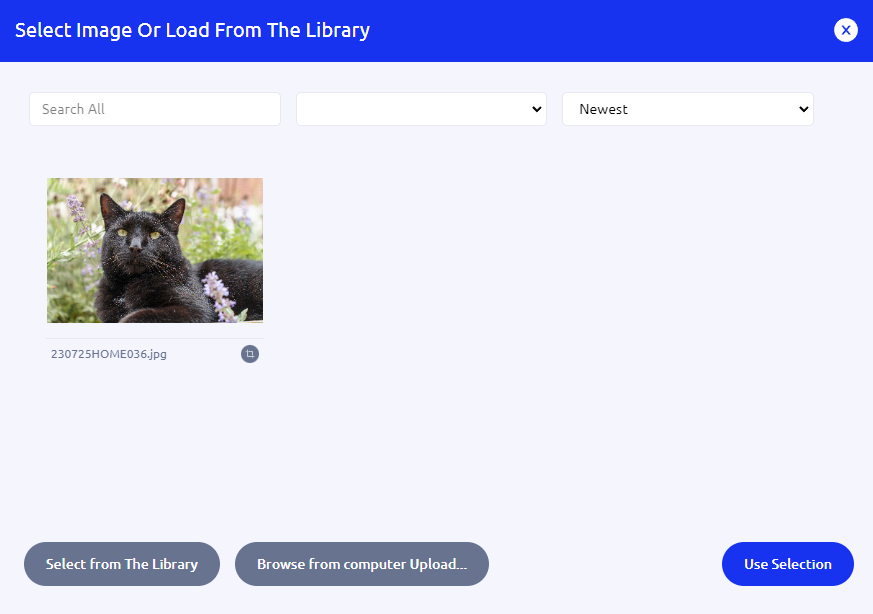
After using the selected image the download process is finished.
Search
When performing a search, the keyphrase is searched for in all Widen descriptive fields.
If the keyphrase consists of multiple terms (separated by spaces), its exact match is searched for.
When a folder is already selected, only images within that specific folder are searched to narrow results.
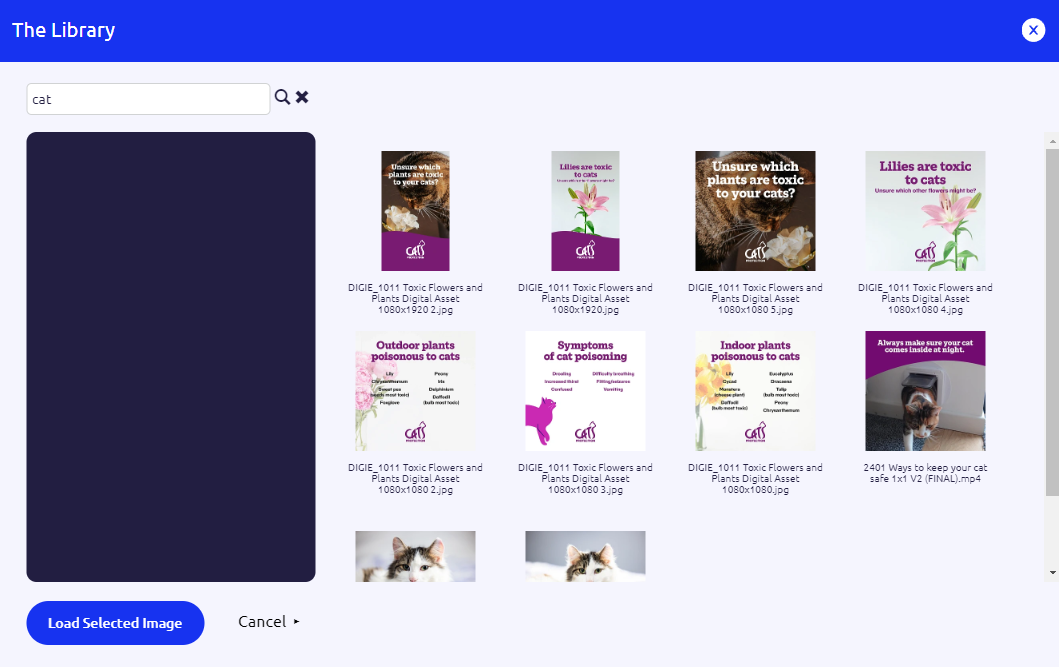
Click the Reset icon next to search one to clear the search results and return to the list of collections.