 Documentation Summary
Functionality
User Site
The RightMarket Sign In And Registration is an extension that renders the self-registration fields in a different way than Storefront normally does. It groups all the fields to one form and displays that form in a modal popup when the Create an account link is clicked on the login page.
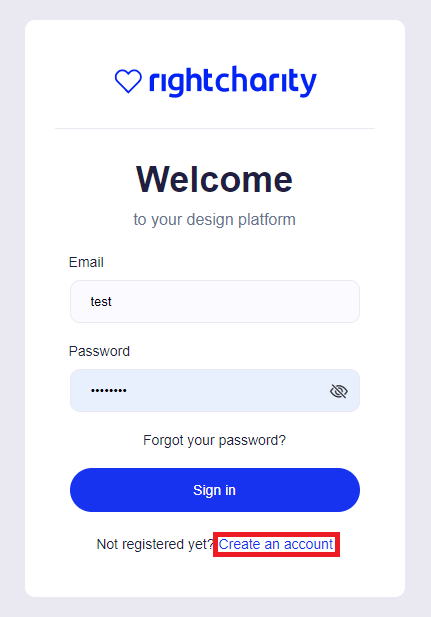
Create an account
The modal popup shows all supported fields configured in the Profile Fields > Registration admin area.
The text in the password field can be shown by clicking the password-peek eye icon to the right.
The password-peek can also be toggled with keyboard.
Focusing the password-box with the tab key, then tabbing once more and hitting the space key toggles the display of the password.
The following picture demonstrates three fields configured as “full width” whereas the remaining fields are standard “half width”.
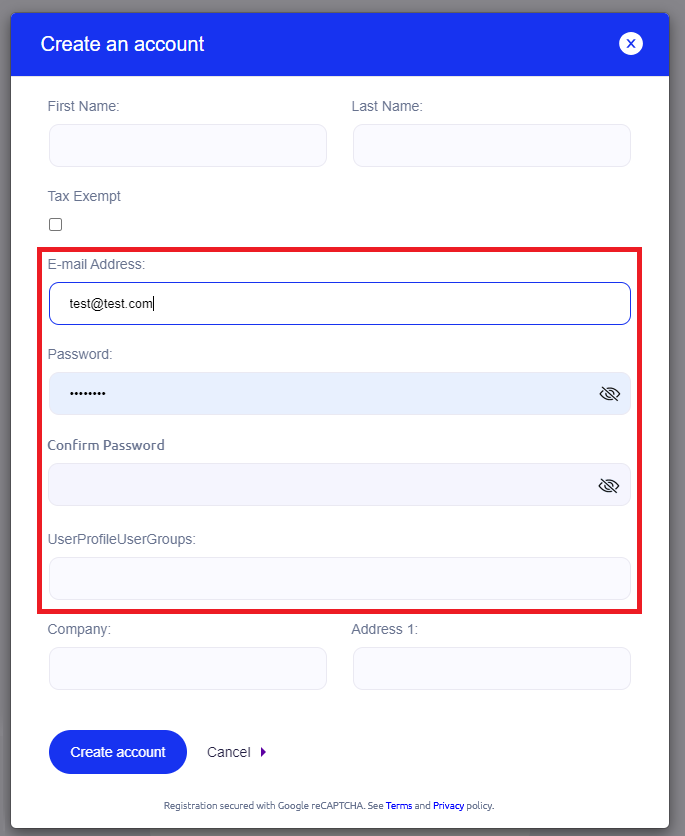
Self registration modal popup
After the self-registering user submits the form, a modal popup appears telling the user to check their emails because an email has been sent to the address submitted with the form. The user needs to click a link in the email (Please complete your registration).
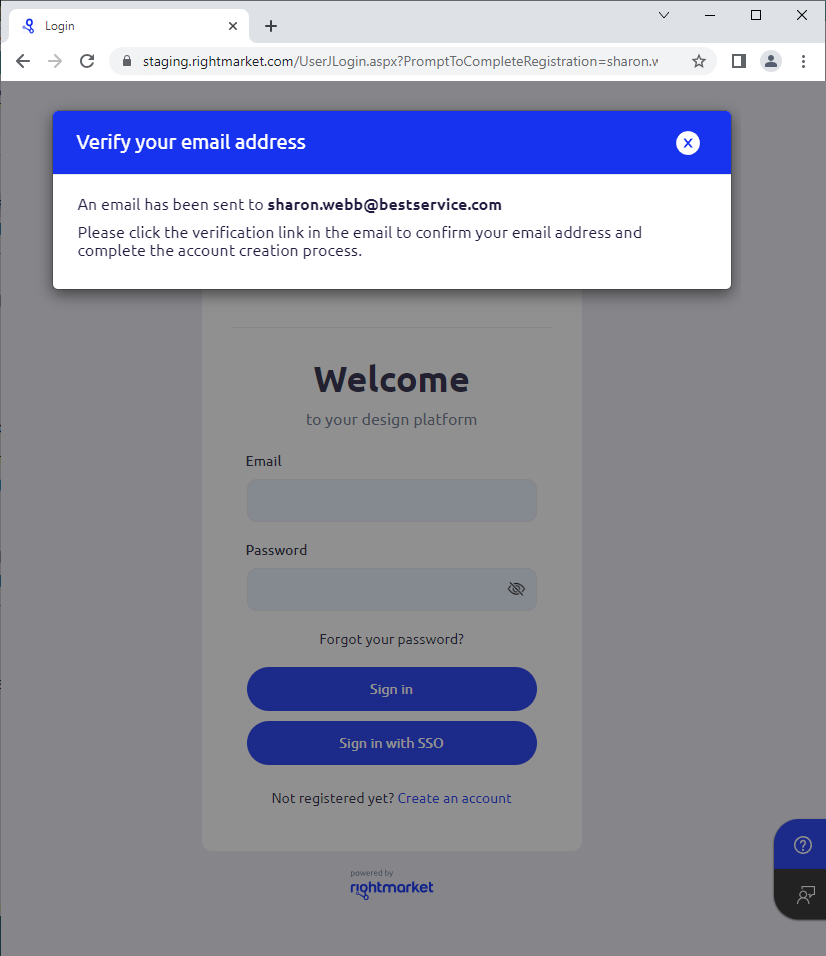
Verification email sent
If the email is lost or ignored by the user, they can start again, fill up the self-registration form, submit with the “Create Account” button and receive another email with the “complete your registration” link. The link is not time-limited and the user can click it with success many days after the email reception.
Clicking the link in the latest email opens the user’s browser on the UserJLogin.aspx page which shows a modal popup with a Sign In button.
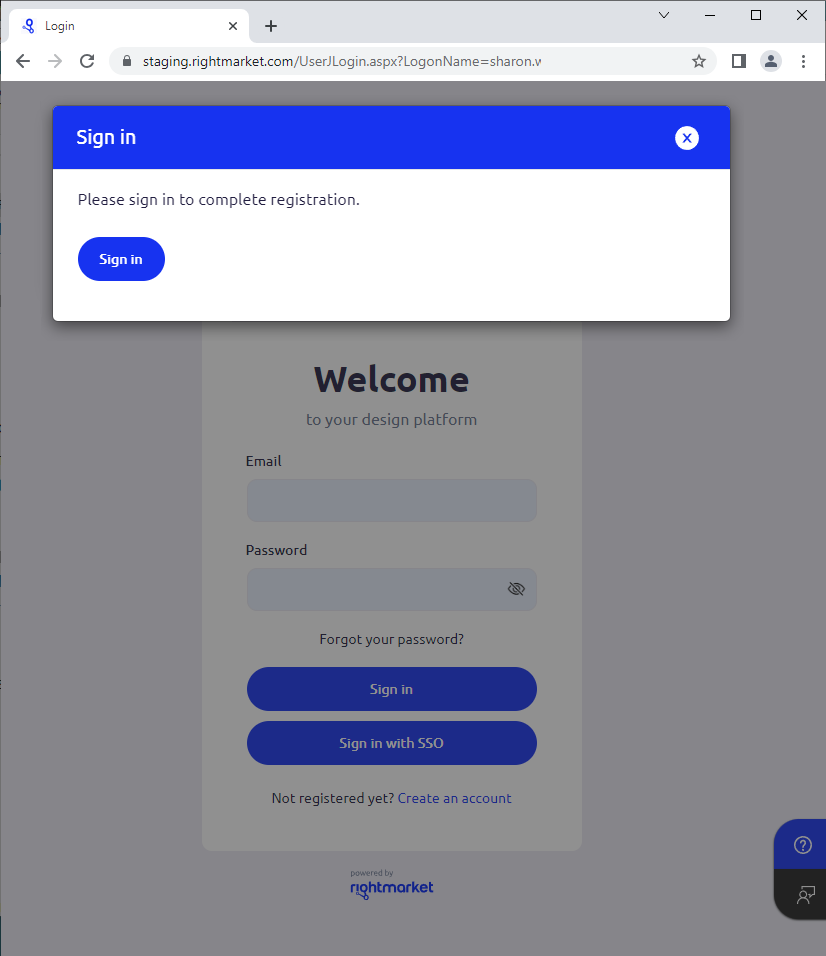
sgn in button
After the users click the Sign In button, their Email Address Verification User Profile Field is filled with the current date and time. This field can be chosen as a column on the admin-site Users page.
Validation
The validation of the fields is done by the user’s browser upon clicking the final Create account button which submits the self-registration form to the server. The look of the warning depends on the user’s browser.
The registration form contains functionality that validates if the “Must Not Be Blank” rule is met:
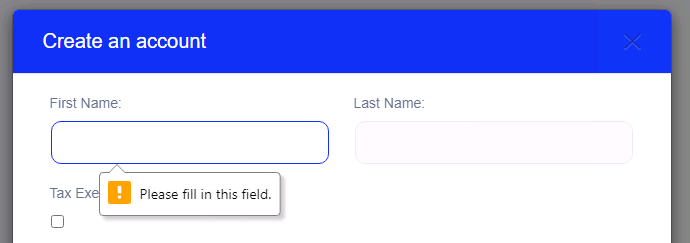
Create an account
The UserProfileEmailAddress and UserProfilePassword special fields use additional inbuilt validation functionality. The UserProfileEmailAddress is tested to contain a valid e-mail address:
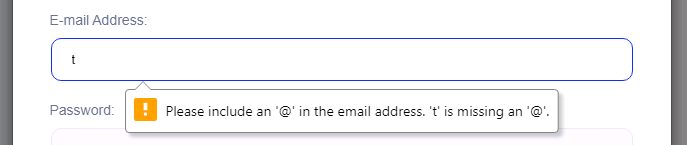
Self registration modal popup
UserProfilePassword enforces four rules - minimum of 8 characters, at least one lower case character, at least one upper case character and one number.
The self-registration requires typing the password twice. If the Password and Confirm Password boxes don’t match, the self-registration can’t be completed.
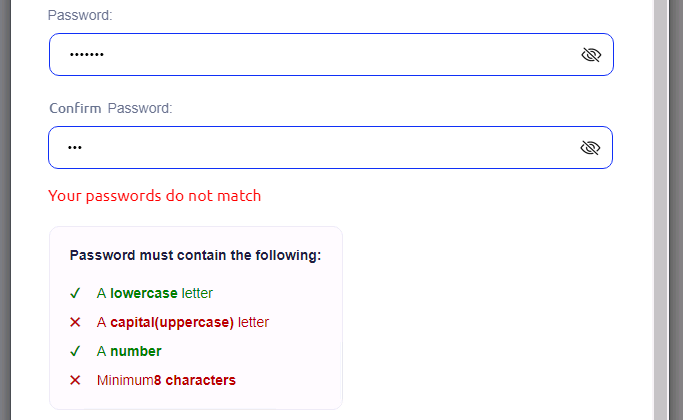
Self registration modal popup
When the validation logic encounters an error in the user account creation process, the user is redirected back to the login page and the error message is displayed under the login form.
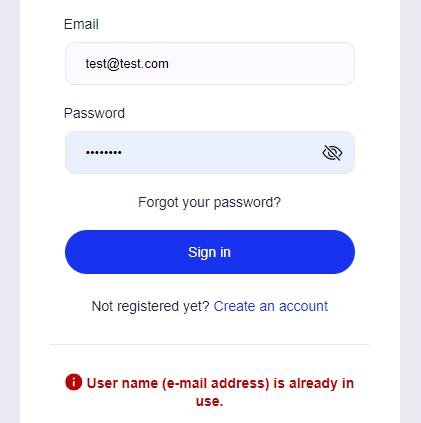
Self registration error
In order to prevent the User name is already in use error, the final Create account button is disabled right after it is successfully used and the self-registration form is sent to the server.
Admin Sign-In
Users who are also admin users can quickly switch to the admin site by selecting this option from the user profile menu which appears in the top-right corner:
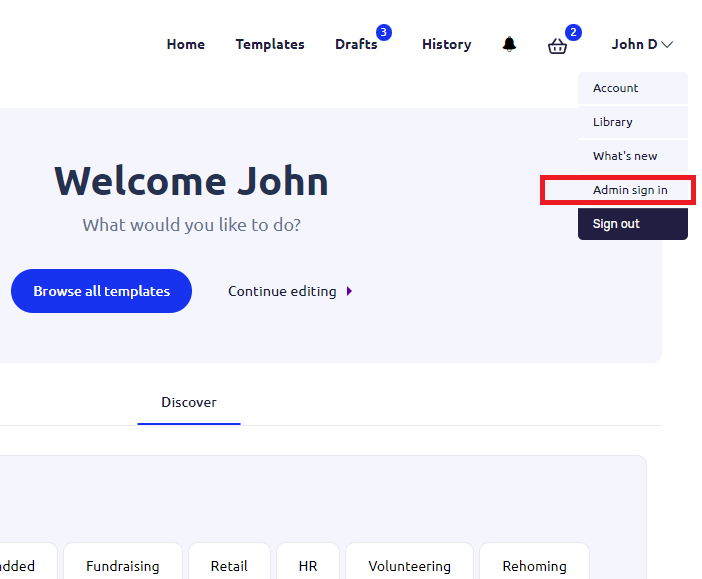
Admin Sign In menu item
Data Collection
The RightMarket Sign In And Registration extension logs numerous events to a dedicated SQL Server database. It logs four types of events:
- Sign In Sessions
- Sign In Failures
- Registration Sessions
- Registration Failures
- Successful Sign In (Pendo.io)
The extension logs certain events to a central log repository:
- Start of self-registration session is logged when the user first selects/clicks into any of the fields on the registration form.
- End of self-registration session is logged after the user account is successfully created.
- Validation or other failures are longed during the process of user account creation.
Sign In Sessions
A new sign in session is started when the user moves their cursor to the E-Mail (User Name) or Password fields for the first time. Each such session has a unique identifier in the form of a GUID value. This type of event is logged only once for each session - any subsequent changes of focus in the E-Mail or Password fields are not logged. The session end event is logged at a successful logon attempt. The following fields are logged during the sign in process: GUID (the session unique identifier), Deployment (the name of the Storefront deployment), UserName (the name of the user attempting to sign in), IPAddress (the IP address of the user’s client computer), StartTime (time of the start of the session), EndTime (time of the end of the session).
Sign In Failures
When a sign in attempt fails, a new sign in failure event is logged. The same unique identifier is used for all failure events within one session so that the whole session process can easily be tracked from start to end. Reason is the actual error message displayed to the user on the page. Sign in failure is logged with the following data fields: GUID (the session unique identifier), Deployment (the name of the Storefront deployment), UserName (the name of the user attempting to sign in), IPAddress (the IP address of the user’s client computer), Reason (text with the reason of the failure), FailTime (time of the event).
Registration Sessions
A new registration session is started when the user moves their cursor to any of the fields on the registration modal popup for the first time. Each such session has a unique identifier in the form of a GUID value. This identifier has the same value as the sign in session identifier for (sign in process and registration process both operate within the same session scope). This type of event is logged only once for each session - any subsequent changes of focus among the registration fields are not logged. The session end event is logged at a successful registration attempt (when the new user account is created). The following fields are logged during the registration process: GUID (the session unique identifier), Deployment (the name of the Storefront deployment), UserName (the user name of the newly created user), IPAddress (the IP address of the user’s client computer), StartTime (time of the start of the session), EndTime (time of the end of the session).
Registration Failures
When a registration attempt fails, a new registration failure event is logged. The same unique identifier is used for all failure events within one session so that the whole session process can easily be tracked from start to end. Reason is one of the three predefined values: “UserAlreadyExists”, “FailedValidation”, “Other”. Registration failure is logged with the following data fields: GUID (the session unique identifier), Deployment (the name of the Storefront deployment), UserName (the name of the newly created user), IPAddress (the IP address of the user’s client computer), Reason (text with the reason of the failure), FailTime (time of the event).
Successful Sign In (Pendo.io)
When the user successfully signs in into RightMarket deployment, the event is tracked in the Pendo.io service. The following fields are logged during the sign in process: Logon Name (the name of the user signed in), Account ID (the name of the Storefront deployment), Time Stamp (time of the user signed in), IP (the IP address of the user’s client computer), User Agent (the browser used for signing in) and Page (the entry point used for signing in).
Notes
There are a few common points that are relevant to all four event types:
- A new unique identifier (GUID) is generated every time when browser window is closed.
- The UserName field might be empty in the logged event until the user populates the relevant field.
- All times are logged in UTC time zone.