 Documentation Summary
Guides
Installation Training Video
Guide For RightMarket Administrators
1) Registration
The option to allow users to register via SAML should be checked. However, some companies may have missing user data in their SAML providers that they need in Storefront, so may prefer to create user accounts manually.
User Groups
There is an option for users who register via SAML to be added into their own user group to help distinguish them from other registrants.
2) Signing In
You will need to find out from the customer if they intend to force all users to sign in with SAML or allow them to choose.
a) If users can only sign in via SAML
In the Site Options change the default log in page to “SAMLSSOService.ashx”. Leave the legacy “Redirect From Log In Page To SAML Log In URL” option unchecked.
Signing Out
Most SAML solutions will provide a SAML log out URL which will not only sign them out of RightMarket but also their SAML provider. If left blank, the user will be redirected back to the standard RightMarket sign in page.
b) If users can sign in both ways
No specific configuration is required.
3) Suspended accounts, archived accounts and sign-in failures
It is highly recommended to provide a page on the customer’s intranet site (or wherever they are initiating the SSO from) where the user can land to provide a good user experience.
Failing to do so can leave the user stuck in an endless loop when they fail to sign in, if they are configured to only sign in via SAML.
4) Service provider
a) Microsoft Entra ID:
Before starting, the customer must first create an Azure Enterprise Application which Microsoft explain how to set up here:
https://learn.microsoft.com/en-us/azure/active-directory/manage-apps/add-application-portal-setup-sso
In 2021, Microsoft changed how this works, share this link with customers ahead of time, to ensure the app is ready to configure.
Details to provide the customer
The Service provider’s Identifier (or Entity ID) is the name of the service the customer will refer to us by. We recommend you suggest “RightMarketSSO” as the identifier to use.
The Assertion Consumer Service URL (or Reply URL & Sign On URL) should be and copy and pasted from the extension settings and provided to the customer. The pattern should always be:
https://[Site Name].rightmarket.com/SAMLSSOService.ashx

In newer Azure SAML apps, this value may also be needed for the Sign On URL.
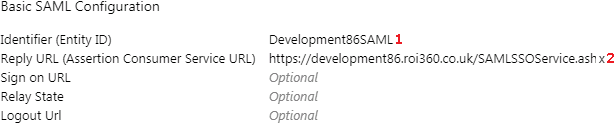
Details the customer needs to provide
In all cases, the customer should simply need to copy and paste information.
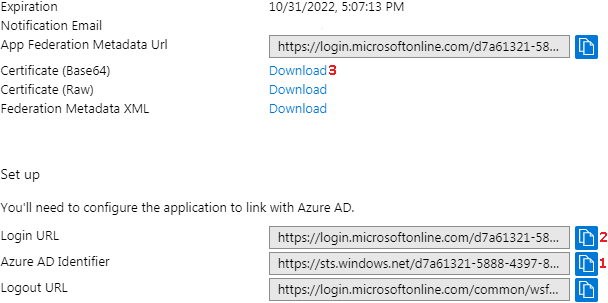
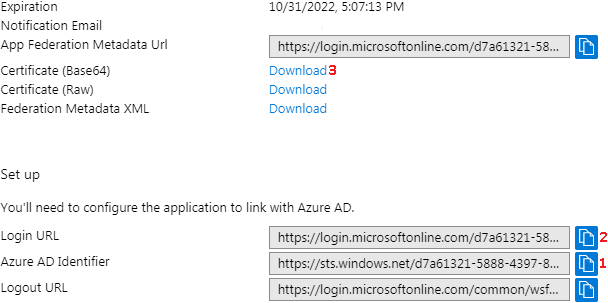
The Identity Provider’s Identifier and Login URL are simply values that can be copy and pasted into the extension settings.
The Certificate (Base 64 String) is file the customer will need to send, open it in a text editor and copy and paste the text into the extension settings.
Finally you will need to map the profile fields between both systems.
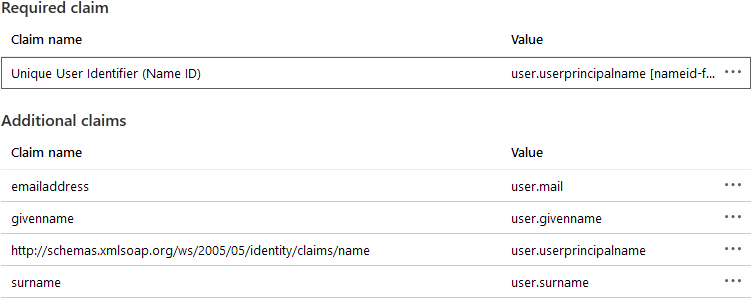
As a minimum, the Username must be mapped for the integration to function. RightMarket also requires mappings to be created for UserProfileEmailAddress, UserProfileFirstName and UserProfileLastName, so ensure with the customer that these fields will all have values. The Username and UserProfileEmailAddress should both be mapped to the same email address.
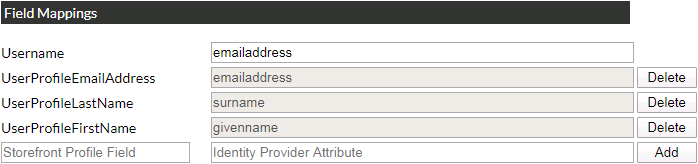
In the settings, the value on the left-hand side is the Field Name in RightMarket while the value on the right, is the name of the Claim Name in Azure. The values are case-sensitive so it is recommended to copy and paste values to avoid rekeying errors.
The values on the left-hand side in the Azure settings are the Claim names which need mapping in RightMarket, not those on the right. By default Microsoft adds long Namespaces which are not necessary (as in the example above).
b) Other service providers (e.g. Octa, Google):
The same values as in the Microsoft Entra ID guide will need filling in, however, different service providers may use different terminology