Documentation Summary
Functionality
Signing In
There are three actors in a typical SAML workflow:
- the Service Provider is the service the user is trying to sign into (i.e. the ROI360 deployment in this case)
- the Identity Provider is a third-party system that authenticates the user (e.g. Azure Active Directory)
- the User Agent is the browser of the user that relays messages between the Service and Identity Providers
When a user is directed to the SSO service in Storefront, the extension will then redirect the user to the SAML Identity Provider. The Identity Provider will authorise the user and redirect the user back to the SSO service in Storefront with confirmation. The extension will then validate the confirmation and sign the user in by creating a single-use login ticket and redirecting them to the user log in page.
When a user signs in, any attributes sent by the Identity Provider will update the user fields they are mapped to (see Fields/Attributes Mappings under Setting Up). Only user profile fields can be mapped to Storefront; user groups cannot be mapped. A user’s profile in Storefront will be updated in this way each time the user signs in, meaning that any changes made to the user profile in Storefront (either by the user or an administrator) may be overridden. In addition, any changes to a profile in the Identity Provider would not be reflected in Storefront until the user in question next signs into the system.
The user will not be able to sign into Storefront if the user account has been archived or suspended. If this occurs, the user will be redirected to the log in page with an error as per standard Storefront functionality.
Signing into Storefront without SAML will not be prevented to allow mixed sign in methods. SAML SSO is only available for the user site and not the administrator site for security reasons.
User Creation
If a user is authenticated by the Identity Provider, but does not exist within the Storefront user list, the extension will create a new user and sign them in. This can be prevented in the ‘General Settings’ (Setting Up) of the extension. The newly created user account will be added to a specific group depending on the selection in the drop down in the ‘General Settings’ configuration area. If a user is deleted in Storefront, their profile will be recreated if the user signs in again, but any previous activity will be lost as the user would be treated as any other newly created account. If the user is suspended or archived, a new account cannot be created. Usernames are restricted to a maximum of 80 characters.
Passwords
All user profiles in Storefront must contain both a username and password. For this reason, when a user is created in Storefront, a randomly generated password will be created for them. Users created in this way would therefore only be able to sign into Storefront using SSO, as they would be unaware of their password in the system. For security reasons, importing passwords from the Identity Provider via a mapped field is not allowed.
Randomly-generated passwords are over 30 characters long. For security reasons, the mechanism for generating them is not divulged in public-facing documentataion such as this.
Page Redirection
After a successful SAML SSO login attempt the user is redirected back to the originally requested page (the page that was requested by the user before the SAML sign on was initiated). This is especially useful in the case of an expired (timed out) sessions. When the user makes an attempt to revive the session (for example by reloading the current page), the system takes the user through the SAML SSO process and after a successful login it takes the user back to the page that had been displayed before the session timed out.
If the user is successfully authenticated by the identity provider, but cannot be signed in for any reason, the user is redirected to a custom page, as defined in the ‘Sign-on Error Redirection URL’ settings.
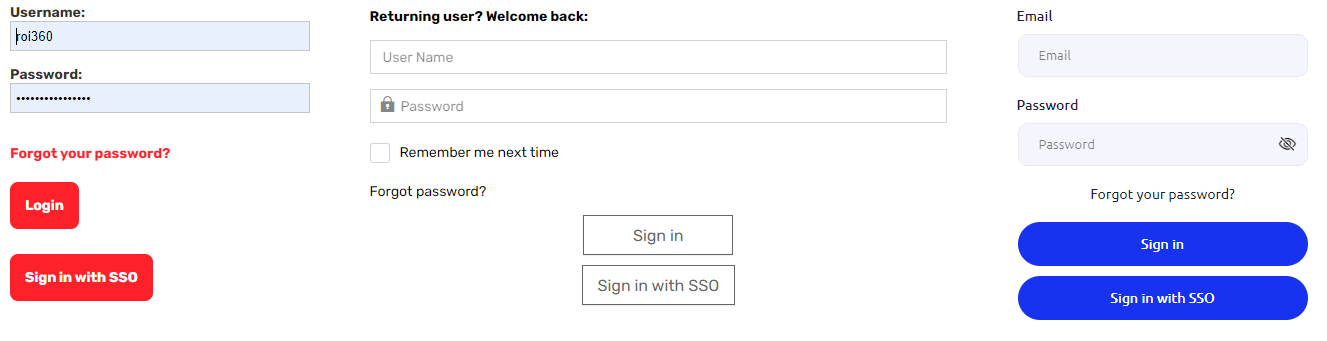
Link TO SSO
When the automatic redirection is not configured (‘Redirect From Log In Page To SAML Log In URL’ unchecked on the Setting Up page), the extensions adds a new button on the standard Login page. It allows users to sign in to Storefront using the SAML SSO functionality. This button appears under the Login button styled according to the currently selected theme:\