 Documentation Summary
Setting Up
Installation Files
The following files must be installed in these Storefront directories:
/WebPages/bin/Extensions/QRCodeGenerator.dll
/WebPages/bin/QRCoder.dll
Extension Configuration
To configure the extension, navigate to the extension’s administration page.
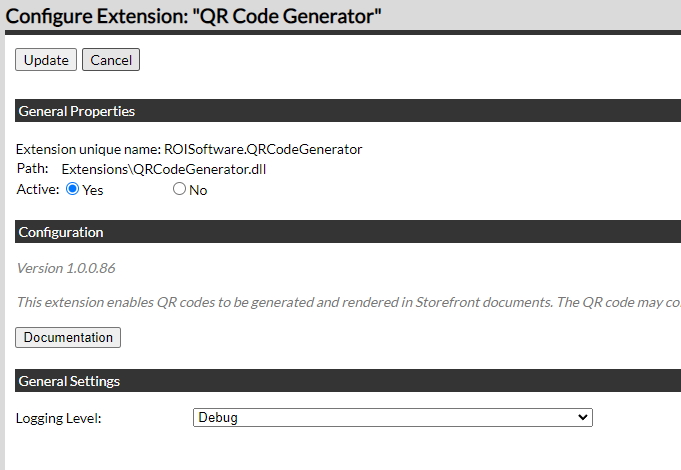
Logging Level
Select logging level depending on the requested detail level of the information logged.
- Standard - only errors are logged.
- Debug - all key processes are logged in detail for debugging issues.
The Standard logging level is preferred to make it easier to spot errors.
Template Configuration
The QR Codes extension can be used in two scenarios: simple print products and data merge print products. Configurations of these two scenarios differ slightly. Configuration for this extension involves both the Studio project/template and the template setup.
Simple Print Products
The Studio project must contain a variable of “Image” type. This variable is then used in the Studio template. The variable must be named “QRCodeImagePath”.
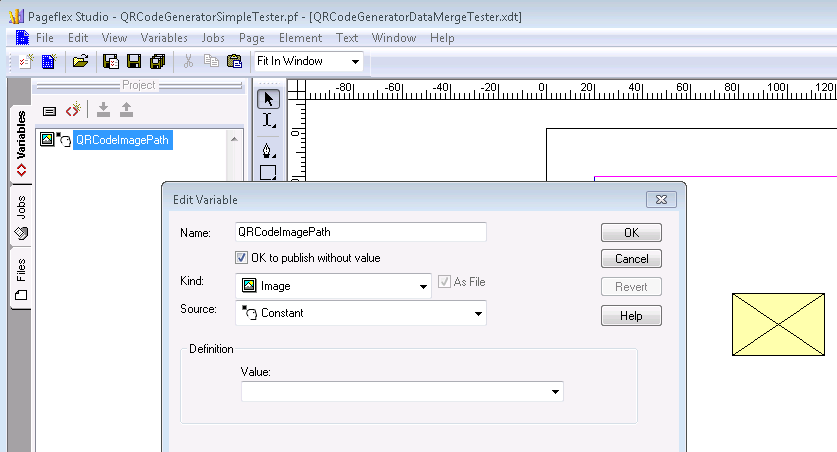
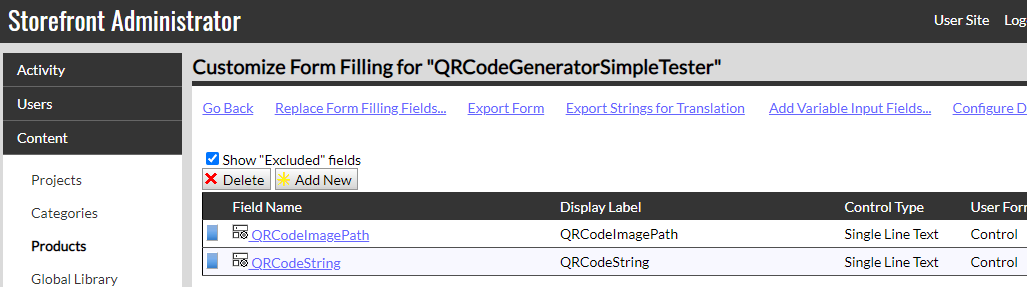
When this project is converted to a template, it automatically creates a new form filling field of “Image choice” control type. The control type should be changed to “Single line text”. This control can be configured as “Always hidden” on user forms. Additionally, a new form filling field must be created with the name “QRCodeString” of “Single line text” control type on user forms (it can also be configured as hidden on user forms when needed). This field will be used by the users to enter the actual text that will be encoded in the QR code. When this field is left empty in the user editing session, no QR Code image rendering will occur.
Data Merge Print Products
In Studio the project for the data merge scenario must contain the “QRCodeImagePath” variable which is configured to retrieve its value from the “QRCodeImagePath” field/column in the provided CSV data file asset.
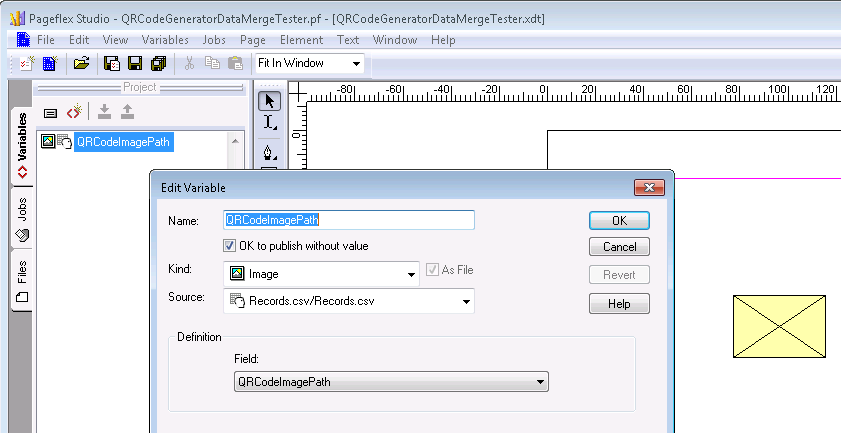
The data files uploaded by the users must always contain at least two fields/columns: “QRCodeString” which must contain the string that should be encoded into the QR code and “QRCodeImagePath” to which the extension will automatically insert the UNC path the to the generated QR code image.