 Documentation Summary
Troubleshooting
Compatibility
Pendo webhooks must be setup in order for this functionality to work. Please see Setting Up for more information.
Limitations
None known at present.
Known Issues
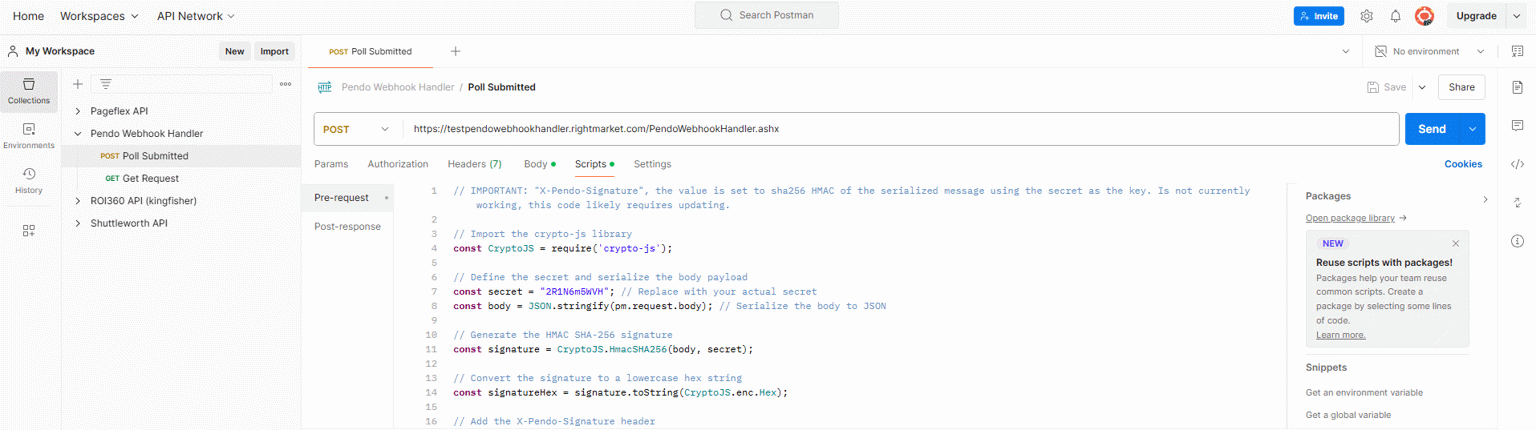
The Postman Pre-request script to mimick Pendo HMAC-SHA256 signature validation is not matching.
When testing in Postman, we recommend setting EnableSignatureValidation to false.
Postman
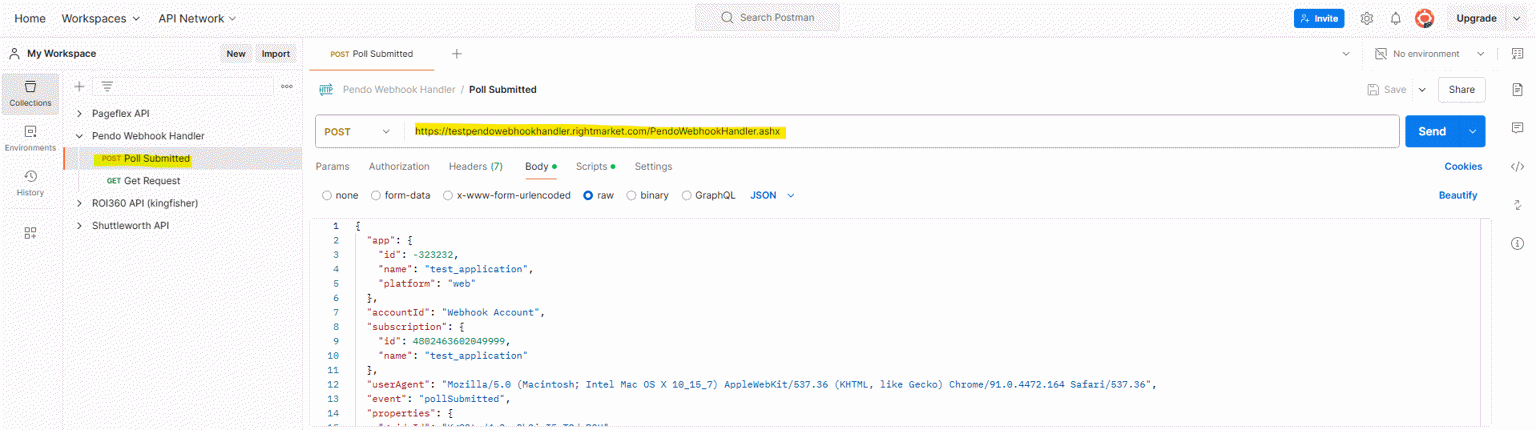
A Postman testing environment is available in the company’s Postman account.
Debugging
The troubleshooting guide below helps you diagnose and resolve common issues with the Pendo Webhook Handler. Follow the steps below to identify and fix any problems you may encounter during setup or operation.
1. Webhook Requests Not Being Processed
Issue:
The handler is not processing incoming webhook requests from Pendo.
Possible Causes & Solutions:
- Cause: The handler URL is not correctly configured in Pendo.
- Solution: Ensure the webhook URL in Pendo is correctly set to the endpoint where the handler is hosted (e.g.,
http://yourserver/PendoWebhookHandler).
- Solution: Ensure the webhook URL in Pendo is correctly set to the endpoint where the handler is hosted (e.g.,
- Cause: The handler is not accessible over the web.
- Solution: Ensure that the handler is deployed on a web server with proper IIS configuration and is publicly accessible. Verify that the application is running in IIS.
- Cause: Firewall or network settings are blocking incoming requests.
- Solution: Ensure that the server is not blocking incoming HTTP requests on the configured port. Check the firewall settings and ensure port 80 or 443 (depending on your setup) is open.
2. Missing or Invalid Signature Errors
Issue:
The handler returns a 403 error with the message "Invalid signature" or "Missing X-Pendo-Signature header".
Possible Causes & Solutions:
- Cause: The signature validation feature is enabled, but the signature from Pendo does not match.
- Solution: Verify that the secret key configured in
Web.configis correct and matches the one set up in Pendo’s webhook configuration. The signature check uses this key to validate the authenticity of incoming requests.
- Solution: Verify that the secret key configured in
- Cause: The
X-Pendo-Signatureheader is missing in the request.- Solution: Ensure that Pendo is correctly sending the
X-Pendo-Signatureheader in the webhook requests. If testing with tools like Postman, make sure to disable signature validation or include the correct signature.
- Solution: Ensure that Pendo is correctly sending the
- Cause: The secret key configured in the handler is incorrect.
- Solution: Check the
secretKeyvalue in theE:\Apps\PendoWebhookHandler\Data\Web.configfile and ensure it matches the key Pendo is using to sign requests.
- Solution: Check the
3. Feedback Data Not Being Logged
Issue:
Feedback data is not being saved to the log files.
Possible Causes & Solutions:
- Cause: Incorrect or missing
DataPathconfiguration.- Solution: Verify that the
DataPathinWeb.configis correctly set to a valid folder path on the server, and ensure that the folder is writable by the web server.
- Solution: Verify that the
- Cause: The folder for storing logs does not exist.
- Solution: Check if the
Responsesfolder exists in the specifiedDataPath. If not, create it manually or ensure the handler has the necessary permissions to create folders.
- Solution: Check if the
4. Email Notifications Not Being Sent
Issue:
Email notifications are not being sent when feedback is received.
Possible Causes & Solutions:
- Cause: Incorrect SMTP server configuration.
- Solution: Ensure that the
SmtpServerandSmtpSendersettings inWeb.configare correctly configured for your email server.
- Solution: Ensure that the
- Cause: Missing or incorrect email recipients.
- Solution: Verify that the
EmailRecipientssetting inWeb.configcontains valid comma-separated email addresses.
- Solution: Verify that the
- Cause: SMTP server authentication or connection issues.
- Solution: Check if your SMTP server requires authentication, and ensure the necessary credentials are provided. Verify that the server is reachable from the host machine.
5. Handler Returning Unexpected Errors (500 Internal Server Error)
Issue:
The handler returns a 500 Internal Server Error with a message like "Error occurred: [error details]".
Possible Causes & Solutions:
- Cause: An unhandled exception occurred while processing the request.
- Solution: Check the handler’s logs for details on the error. Logs can be found in the
DataPathdirectory under theLog.txtfile. Review the error message to identify the source of the issue.
- Solution: Check the handler’s logs for details on the error. Logs can be found in the
- Cause: Misconfigured settings or missing configuration values.
- Solution: Ensure that all required configuration settings (like
EmailRecipients,SmtpServer,secretKey, etc.) are properly set in theWeb.configfile.
- Solution: Ensure that all required configuration settings (like
- Cause: The handler cannot read configuration files.
- Solution: Check file permissions on the
Web.configfile to ensure the application can access it.
- Solution: Check file permissions on the
6. Handler Not Responding to Webhook Requests
Issue:
The handler does not respond to webhook requests, or responses are slow.
Possible Causes & Solutions:
- Cause: IIS is misconfigured or the handler is not properly registered.
- Solution: Make sure that the handler is properly mapped in IIS, and that it points to the correct physical directory. Check that the
PendoWebhookHandlerhandler is configured to respond to incoming requests.
- Solution: Make sure that the handler is properly mapped in IIS, and that it points to the correct physical directory. Check that the
- Cause: Insufficient server resources.
- Solution: Check the server’s resource usage (CPU, memory, disk space). If the server is under heavy load, it might not be able to respond to requests in a timely manner.
7. Debugging and Log Files
Issue:
You need to debug or investigate the handler’s behavior.
Possible Causes & Solutions:
- Cause: Debug mode is not enabled.
- Solution: Ensure that
DebugModeis set totruein theWeb.config. This allows additional logging for troubleshooting purposes.
- Solution: Ensure that
- Cause: Reviewing logs for more detailed error information.
- Solution: Logs are saved in the
DataPath/Log.txtfile. Open this file to find detailed error messages or issues related to the handler’s operations.
- Solution: Logs are saved in the
8. Handler Not Handling GET Requests
Issue:
When accessing the handler via a browser, it’s not responding or showing the expected information page.
Possible Causes & Solutions:
- Cause: IIS configuration is not handling the GET request properly.
- Solution: Ensure the handler is set up to respond to
GETrequests and that IIS is configured to allow these requests.
- Solution: Ensure the handler is set up to respond to
- Cause: Handler misconfiguration.
- Solution: Verify that the handler is correctly registered in IIS and the request is being routed to the correct handler. Test by accessing the URL directly in the browser.
General Troubleshooting Steps
- Check Logs: The first step in any troubleshooting process is to review the handler’s log files located in
DataPath/Log.txt. These logs provide detailed information about the errors. - Check Configuration Files: Ensure that all configuration values in
Web.configare correct and that no required values are missing. - Test with Tools: Use tools like Postman to send test requests to the handler and verify that it is functioning correctly.
- Review Permissions: Check file and folder permissions to ensure that the application can read and write data as needed.
If you are unable to resolve the issue with the above steps, consider reaching out to support for further assistance.