Documentation Summary
Setting Up
Installation
The following files must be installed in these Storefront directories:
/WebPages/_OrderStatisticsBody.ascx
/WebPages/_OrderStatisticsDocuments.ascx
/WebPages/_OrderStatisticsDownloadCSV.ashx
/WebPages/_OrderStatisticsOrders.ascx
/WebPages/_OrderStatisticsTemplates.ascx
/WebPages/_OrderStatisticsUsers.ascx
/WebPages/AdminOrderStatistics.aspx
/WebPages/highcharts.js
/WebPages/OrderStatistics.config
/WebPages/UserOrderStatistics.aspx
/WebPages/Custom/OrderStatistics/Chart.js
/WebPages/Custom/OrderStatistics/OrderStatistics.resx
/WebPages/Custom/OrderStatistics/Style.css
/WebPages/bin/OrderStatisticsPages.dll
/WebPages/bin/Extensions/OrderStatisticsExtension.dll
Extension Configuration
To set up the extension, go to ‘Administration > Extensions’ on the Storefront Administrator website.
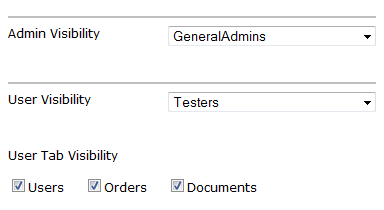
To configure the extension, set the Admin Visibility drop down to an admin group that should have permissions to view the analytics page. In the full version, the User Visibility drop down can also be configured in the same manner for users, including the option of which tabs the users in the group have access to:
An additional custom column can be added to the user and order tables; the user table from the User Profile Fields and the orders table from the Payment Fields:
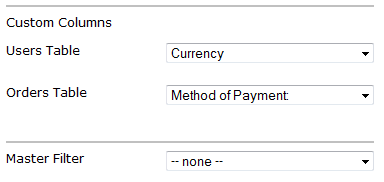
A master filter can be applied to the user-side analytics; administrators can filter statistics freely on the administrator-side analytics page.
Master Filter
Understanding The Master Filter
The master filter on the user site works much the same as the filter does on the administrator site, except that it is predefined in the site configuration.
Setting the master filter against a user profile field affects the following.
Users Tab:
- The chart statistics
- Which users appear in the table
- How many orders are placed and the value of each order
Orders and Documents Tabs:
- The graph statistics
- Which orders and documents appear in the tables
Setting the master filter against a payment field affects the following.
Users Tab:
- The chart statistics
- How many orders are placed and the value of each order
Orders and Documents Tabs:
- The graph statistics
- Which orders and documents appear in the tables
The following examples explain the functionality and filter types in more detail.
Example 1: User Profile Field
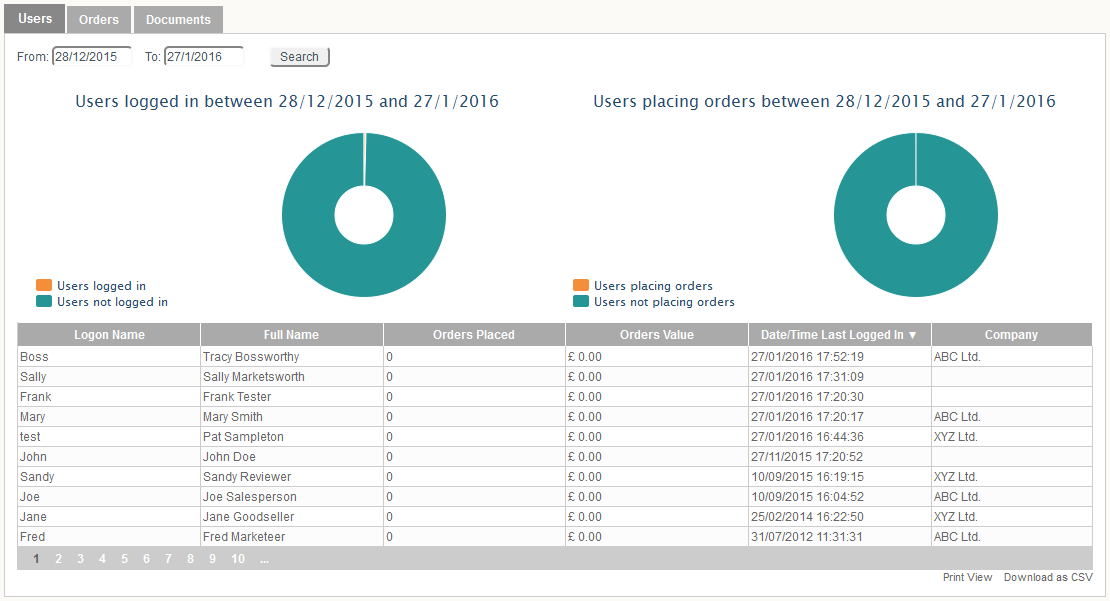
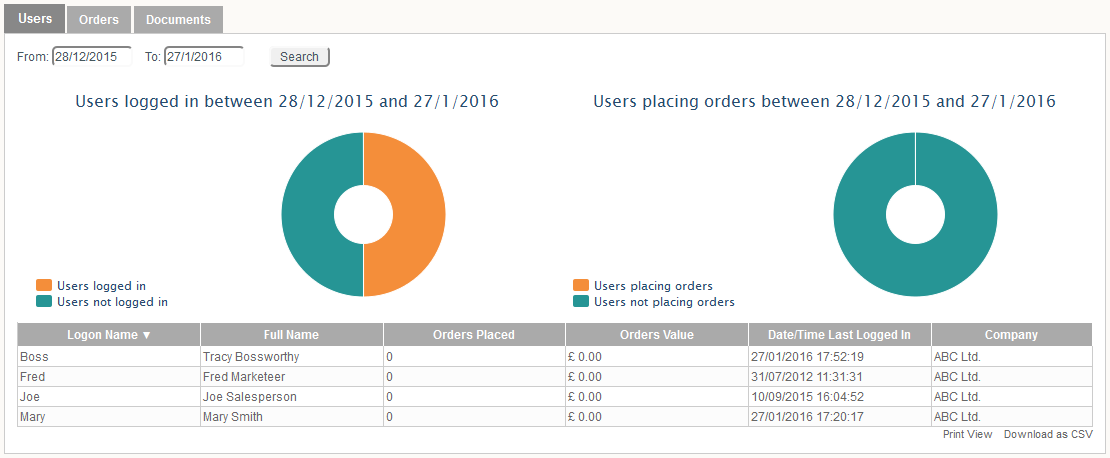
In the first example, imagine a deployment with 2 different companies using it, ABC Ltd. and XYZ Ltd. Each user on the system has a ‘Company’ user profile field set to ABC Ltd. or XYZ Ltd. If the master field is set to the ‘Company’ field, when users view the analytics, they will only see statistics relating to users in their company.
Before:
After:
Example 2: Payment Field
For the second example, imagine a deployment where people place their orders against cost centres X, Y or Z. Aside from a ‘Cost Centre’ dropdown on the payment fields, a matching user profile fields exist. Users with permission to view the analytics have their ‘Cost Centre’ profile field set to either X, Y or Z. When one of these users views the analytics, they will only see data for orders placed against their cost centre.
Before:
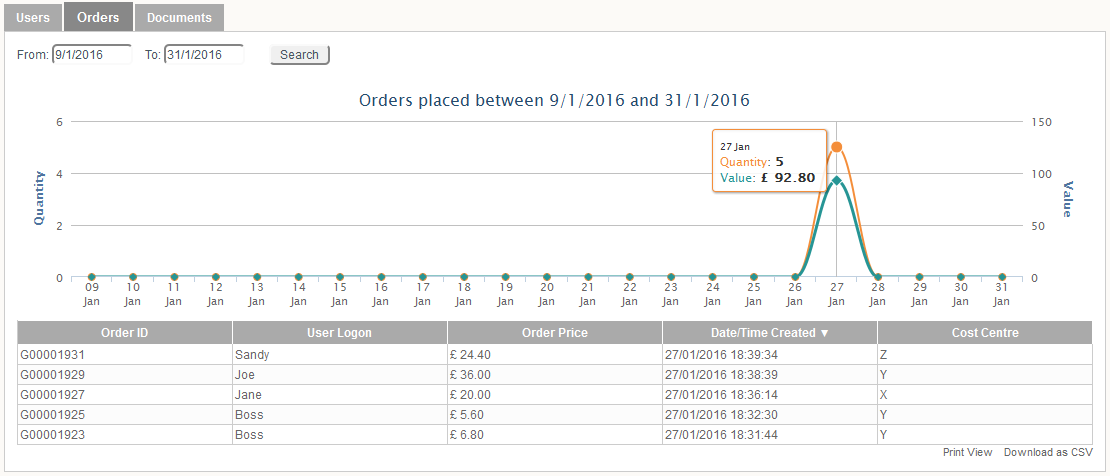
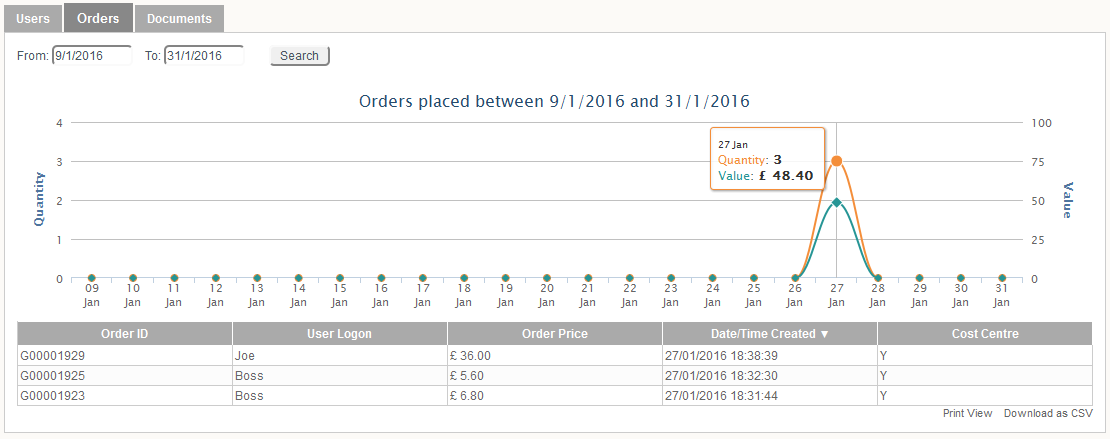
After: