Documentation Summary
Managing Databases
The Form Filling Database configuration page has four sections: Download Database, Upload Database, New Database and Edit Records.
Download Database
Previously uploaded databases can be downloaded in this section by selecting the database name from the dropdown list and clicking the download button.

Upload Database
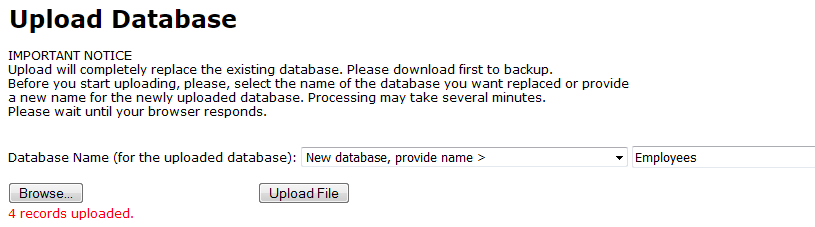
A database in CSV format can be uploaded in this section to update an existing database or to create a new one. Select the name of the database to update then click ‘choose file’ to select the data to upload. It is advisable to back up a database before uploading it. To add a new database, select New database > provide name from the dropdown and enter a name in the field on the right, then click choose file.
The database must be a in a valid CSV file format and the column headings must match the respective form filling fields exactly including spacing and capitalisation, in order for the columns to map to the fields in the form filling. The section column must also be present in the database (can be empty).
New Database
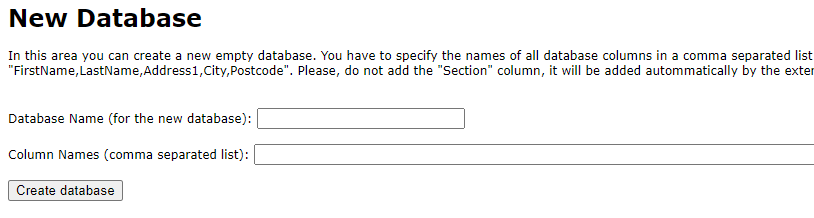
‘Database Name’ - enter the name of the newly created database.
‘Column Names’ - enter the list of column names (headings) for the new database separated by commas. The column headings must match the respective form filling fields exactly including spacing and capitalisation, in order for the columns to map to the fields in the form filling. Do not add the ‘Section’ column, it will be added to the database automatically.
Edit Records
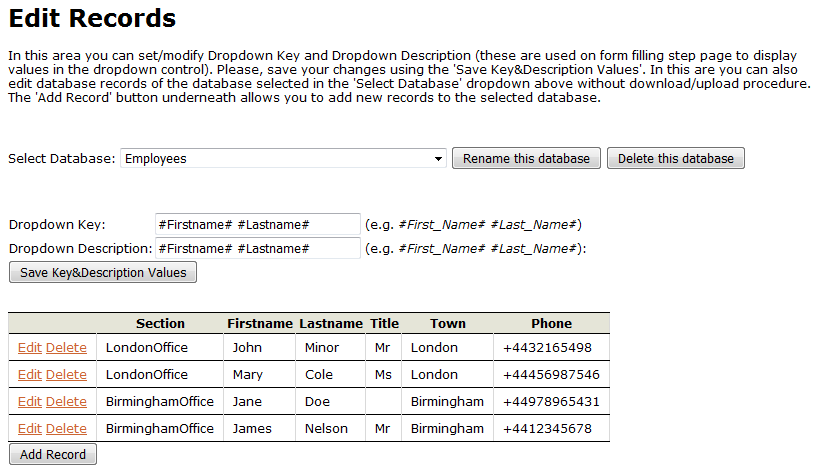
Once a database has been uploaded it will need a dropdown key and dropdown description which are then used on form filling page in the main dropdown. These two values are found in the ‘Edit Records’ section. Select the database from the dropdown list, both fields will be available to edit.
The ‘Dropdown Key’ is the unique identifying column of the database. The ‘Dropdown Description’ is the name the user sees in the dropdown list on the form filling page. For both of these fields enter the column header in between two # tags, for example: #Firstname# #Lastname# where Firstname and Lastname are the column headers. Once the dropdown key and dropdown description have been entered, click the ‘Save Key&Description Values’ button.
The name of a database can be changed by clicking the ‘Rename this database’ button. When this is clicked the database name will become editable. When you are happy click Save the new name. A database can be deleted by selecting the database from the list and clicking ‘Delete this database’. Click the confirmation to delete the database. Once deleted, the data cannot be restored.
Individual records can be edited or deleted by selecting either of the two buttons on the left of the table. ‘Delete’ will remove this row and ‘Edit’ will make the contents of the row editable. Once edited click update for the changes to take effect. Add records by clicking the ‘Add Record’ button.