 Documentation Summary
Setting Up
Installation
The functionality should be installed via https://manage.rightmarket.com
The installation should include the following files:
/bin/AIContentWriter.dll
/ROI360/ManagedService/AIContentWriter/AdminBody.html
/ROI360/ManagedService/AIContentWriter/AdminHead.html
/ROI360/ManagedService/AIContentWriter/AIContentWriter.css
/ROI360/ManagedService/AIContentWriter/AIContentWriter.htm
/ROI360/ManagedService/AIContentWriter/AIContentWriter.js
/ROI360/ManagedService/AIContentWriter/Interface.ashx
/ROI360/ManagedService/AIContentWriter/OpenAI.json
Extension Configuration
The extension can be enabled within the “Extensions” page. Once enabled, an AI Content Writer link will appear in the menu, or from the ‘Settings’ button in Extensions>AI Content Writer where configurations can be made.
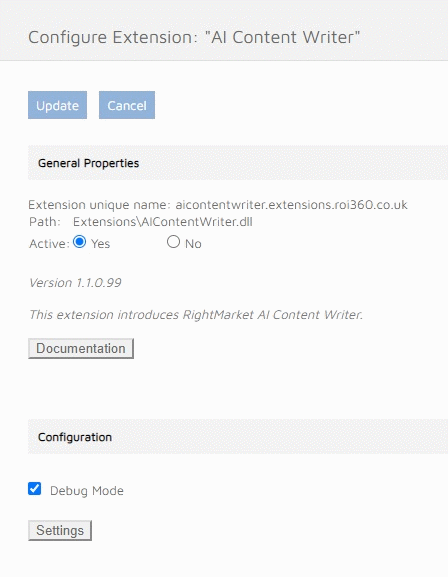
AI Content Writer settings
The Debug Mode makes the extension call the Open AI service with a Test API Key. The request are then logged separately on the Open AI server. The API Keys are configured in the OpenAI.json configuration file. The Debug Mode also gives the option to see the conversation history in the browser developer console to check settings and requests are set as intended.

Conversation History browser developer tools
Admin Page
This page is visible to all administrators (both staff and sustomers). Within this page is a toggle button where the AI Content Writer can be enabled or disabled on the user site. This setting is applied immediately and does not require the user to press save.
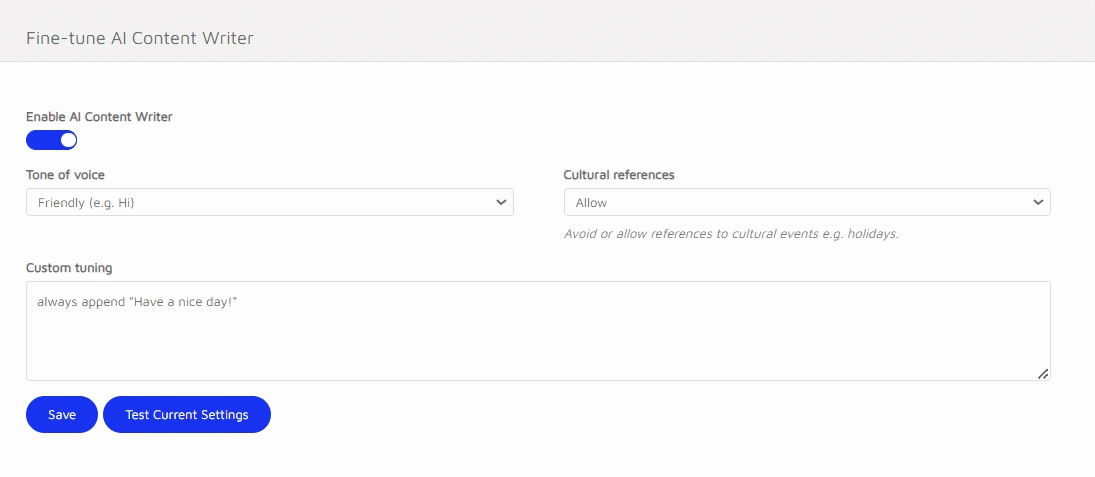
AI Content Writer settings
Configuration of the responses can be fine tuned here, clicking ‘Save’ will apply those changes to the user site.
Tone of voice - adjusts the formal language of responses.
Cultural references - allows references to national/religious events.
Custom tuning - ability to request use of specific words/language/topics etc in responses.
‘Test Current Settings’ will take the settings in the configuration page and apply them to the conversation history in the modal which will open in this page.