 Documentation Summary
Setting Up
Installation
The extension shoud be installed or updated by using the Manage website. It is also possible to manually unzip the installation package and copy-paste the files to their target location in the site folder.
Files
WebPages\bin\Extensions\SubmittedJobsMonitor.dll
- WebPages\ROI360\Submitted Jobs Monitor\Interface.ashx
- WebPages\ROI360\Submitted Jobs Monitor\UserJDocumentCustomize.htm
Extension Configuration
After the installation, please use the page AdminLogin.aspx to log in to the site as admin. Follow the links Administration > Extensions. Find the item Submitted Jobs Monitor, click to display the extension configuration page: (Only RightMarket admins are able to see the installed extension on the Admin Extensions page. The exension is hidden from standard admins.)
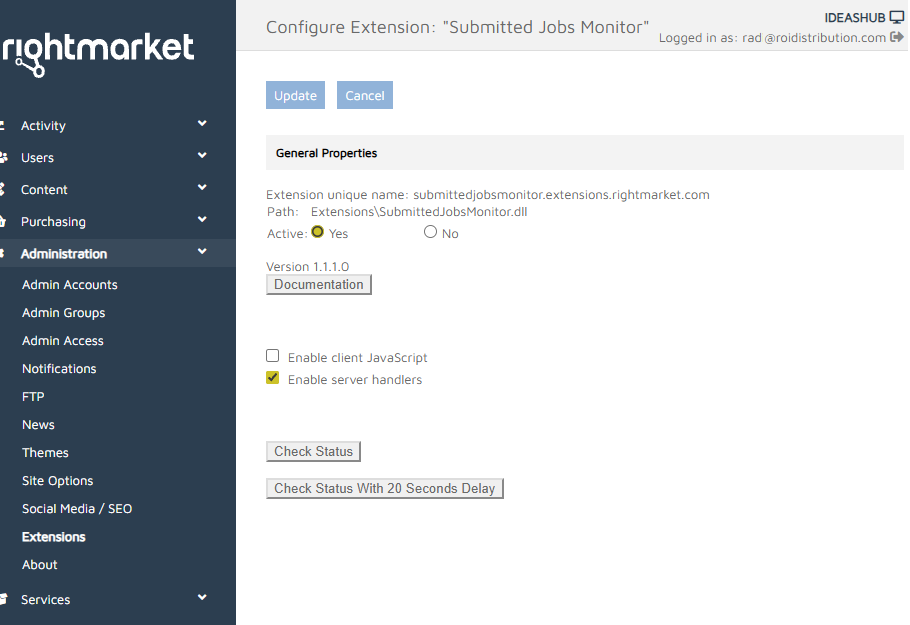
Click the Active Yes option to enable the extension and then the Update button.
The “Enable client JavaScript” option is off as a default. It can be used to activate the JavaScript on the user Form-Filling page. The JavaScript is looking for the appearance of the Download dialogue. If the dialogue appears and the delay before the design shows up ready for download exceeds twenty seconds, then the JavaScript sends a command to the server which in turn runs the check for the submitted jobs.
The “Enable server handlers” option is on as a default. It automatically runs the check for submitted jobs each time an order is ready for printing (after the approval process has successfully finished). For templates which are configured to enable the direct download, it runs the check twenty seconds after the user has clicked the Download button on their Form-Filling page.
User Configuration
Not applicable.
Template Configuration
Not applicable.