 Documentation Summary
Setting Up
Once installed, the extension will appear in the extensions page on the administration site. When selected, the following configuration will be presented: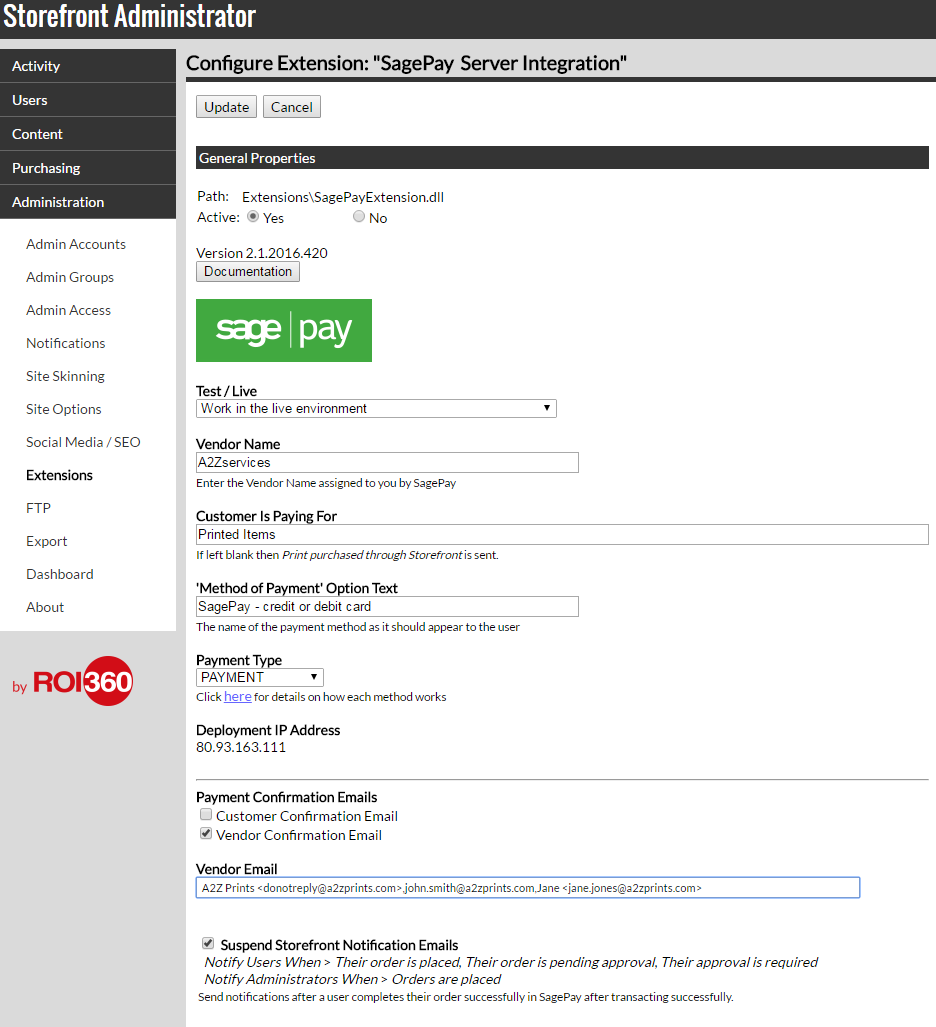
Test / Live
These two options enable the administrator to test the integration is working correctly without having to pay money. The successful and failed testing Transactions are listed on the MySagePay website. If the test payments are successful then this option can be switched from “Use the testing server detached from the banking network” to “Work in the live environment”.
Vendor Name
This box contains the VendorName assigned to the applicant for a vendor-account with SagePay. Please make sure the box contains the name exactly as it was assigned. Upper and lower-case letters must be respected, with no trailing spaces.
Customer Is Paying For
An optional field that can be used to identify the source of the payment, for example if multiple systems use the same SagePay account for processing payments. The text appears on the MySagePay website in the transaction details.
‘Method of Payment’ Option Text
This the text that appears on the checkout step, as the name of the option a user can select for their method of payment.
Payment Type
The drop-down box contains three options:
PAYMENT
A customer places their order and fills in their card details on the SagePay secure payment gateway. The payment is settled at the end of each working day. The amount is for the whole order, no matter if some of the ordered documents are later rejected during the approval process. Should any ordered documents later be rejected, it is the vendor’s responsibility to check the order details and click the Refund button to manually transfer the appropriate amount back to the customer’s account. If all documents in an order are rejected the same working day the order is placed, the transaction can be voided by clicking the Void Payment Authorization button.
DEFERRED
A customer places their order and fills in their card details on the SagePay secure payment gateway. The integration automatically collects the money after all items in an order are either approved or rejected and the order is ready for production. If any items in an order are rejected, the amount collected by the integration is automatically reduced. SagePay only guarantee the funds are available to collect within the first 6 days after the order is placed. There is no guarantee beyond the first 6 days. The transaction is valid for up 30 days, after which it is automatically aborted by SagePay.
AUTHENTICATE
A customer places their order and fills in their card details on the SagePay secure payment gateway, SagePay holds the payment details for later. The integration collects the money after all items in an order are either approved or rejected and the order is ready for production. If any items in an order are rejected, the amount collected by the integration is automatically reduced. SagePay do not guarantee the user has the funds available when it is time to collect the funds. The transaction is valid for up to 90 days, after which it is automatically cancelled by SagePay.
No guarantee of collection means the customer may spend their money in the meantime, hence they may not have the funds in their account by the time the integration attempts to collect the funds.
To collect money immediately after an order is placed and manually refund any rejected documents, please select PAYMENT.
To take advantage of an automatic collection of an amount reduced according to the number of rejected documents, please select DEFERRED.
To automatically collect payment when approval processes usually take more than 6 days, please select AUTHENTICATE.
Read more about SagePay transaction types.
Deployment IP Address
This is the IP address of your deployment which you must allow in your SagePay account.
Payment Confirmation Emails
Two types of confirmation emails can be sent after a successful transaction. The Vendor email is sent to the addresses defined in the vendor email field. The Customer email is sent to the user to confirm their payment according to the email address in their user profile field. Emails are always sent from the first email address defined in the vendor email field.
Vendor Email
This field can contain one or more email addresses in the following format:
A2Z Prints <donotreply@a2zprints.com>,john.smith@a2zprints.com,Jane <jane.jones@a2zprints.com>
All email addresses need to be separated by commas.
Installation
The SagePay Server integration is comprised of three files which must be installed in the following locations relative to the deployment root:
WebPages\SagePay.aspx
WebPages\bin\SagePayPages.dll
WebPages\bin\Extensions\SagePayExtension.dll