 Documentation Summary
Setting Up
Remote Login is comprised of these files which must be installed in the specified folders:
WebPages\bin\Extensions\RemoteLogin.dll
WebPages\bin\RemoteLoginPages.dll
WebPages\UserRemoteLogin.aspx
WebPages\UserRemoteLogout.aspx
WebPages\UserRemoteRegister.aspx
Configuration
Once installed, the extension will appear in the extensions page on the administration site. When selected, the following configuration will be presented:
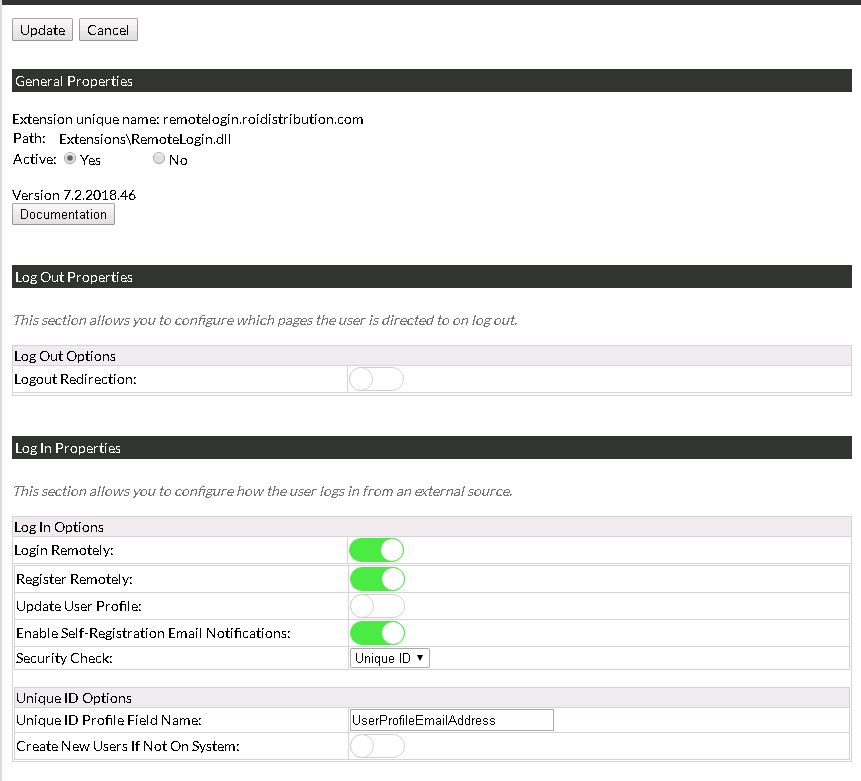
Logout Redirection - clicking this option enables or disables the logout function.
When enabled, this field must also be configured:
Administrative Website > Site Options > Login > Logout URL > Custom….
The URL field must contain the text UserRemoteLogout.aspx.
Reset logoutUrl Profile Field On Logout - once the logout function is enabled, the user logs out and is redirected to their logoutUrl. Afterwards, their logoutUrl User Profile Fields is cleared.
It is ADVISED you create a User Profile Field called logoutUrl.
This field allows personalised log out pages (e.g. users from different companies on the same deployment can be redirected back to their company’s website when they log out).
Default Logout URL - once the logout function is enabled, this option denotes a URL to redirect to if the user field logoutURL is blank or not found.
Login Remotely - clicking this option enables or disables the login function. The page UserRemoteLogin.aspx can be requested with appropriate parameteters (please see the HTML Forms section). As a default, only existing users can log in.
Register Remotely - click this option to enable the creation of new users remotely. This option activates the page UserRemoteRegister.aspx. When requested with appropriate parameteters (please see the HTML Forms section), a new user is created on the website and logged in. In case of a failure, please have a look in the Storefront log to find the reason.
Update User Profile - click this option to allow the HTTP requests to pass User Profile Field values to UserRemoteLogin.aspx page. This way it is possible to configure various user settings remotely.
Enable Self-Registration Email Notifications - click this option to try and send notification emails whenever a new user account is created either by a successful browser request to UserRemoteLogin.aspx or UserRemoteRegister.aspx. The notification emails are configured on the page Administration > Notifications, the messages User Notifications > Self-registration is completed and Administrator Notifications > A user has self-registered.
Security Check - there are two options Default - only the correct user name and password are required to log in. Unique ID - the correct name and password required, plus a correct name-value pair must be sent for a predefined User Profile Field.
Unique ID Profile Field Name - once the Unique ID Security Check is selected, this field specifies the name of the predefined User Profile Field that contains the user’s unique ID.
Create New Users If Not On System - once the Unique ID Security Check is selected, new users can be created on the first request to the UserRemoteLogin.aspx page.
The Unique ID Options are useful when building a Single Sign-On solution based on machine-generated user credentials. The end-user is then required to remember one single ID, usually their email address. In this case, the Unique ID Profile Field Name would then contain the name UserProfileEmailAddress.