 Documentation Summary
Setting Up
Installation
Product Notifications is comprised of two files which must be installed in the specified folders:
Files
WebPages/bin/Extensions/ProductNotifications.dll
WebPages/ROI360/ProductNotifications/Template.htm
The Extension Configuration
Once installed, the extension will appear in the extensions page on the administration site. When selected, the following configuration will be presented:
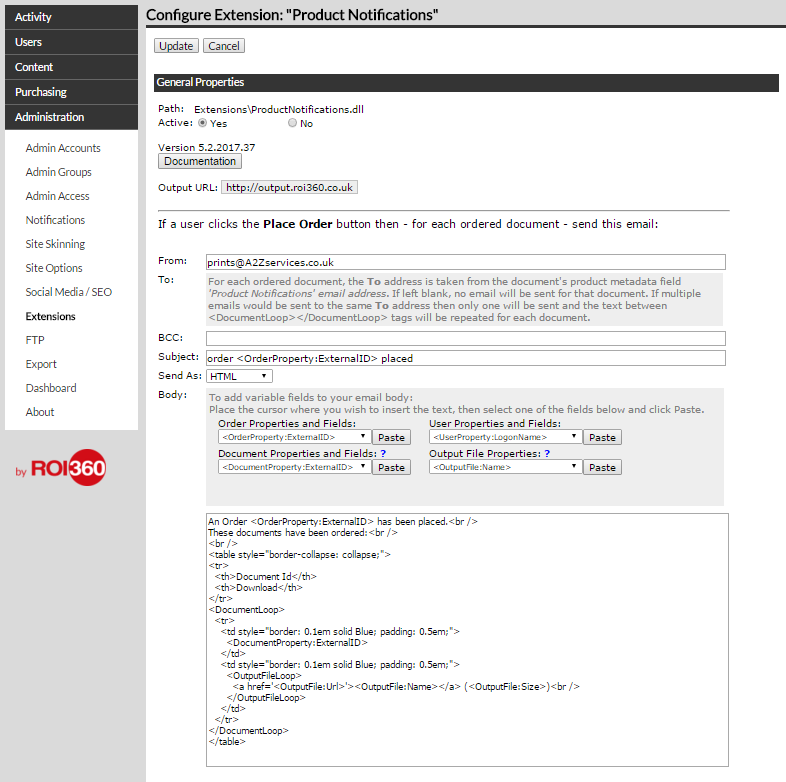
The setup is very similar to the built-in notifications:
From - The sender address, this doesn’t have to be a valid address. It is advisable to set this as donotreply@[site URL] to prevent problems with recipients’ email spam filters.
To - This is determined by the value of the ‘Product Notifications’ email address metadata field. If left blank, no email is sent, if filled out with a valid email address, the notification will be sent to said address.
BCC - An extra email address can be blind copied into all notifications, usually filled out for tracking purposes in case the intended recipient wasn’t able to receive the email, or to keep track of what is being sent to recipients.
Subject - Effectively the title of the email.
Send As - Either as Plain Text (no formatting, send ‘as is’ (including any HTML tags)), or HTML (allows for HTML formatting such as line breaks, text styling and logos). The latter option is recommended.
Body - All the details to be sent to the intended party,
such as order/item information should be included here as either HTML
or plain text depending on the previous selection.
Document Properties selected from the drop-down must be included
in between the <DocumentLoop> </DocumentLoop> tags for them
to appear within the notification.
The Template Configuration
A template Metadata Field is created after you visit the configuration page
for determining the recipient.
Please make sure it remains configured as shown below:
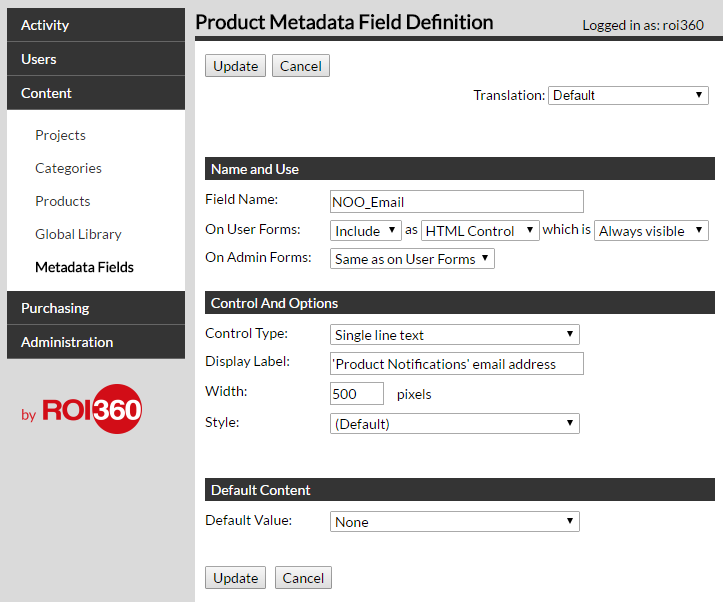
Once created, the Metadata Field will appear in the Template setting as shown below:
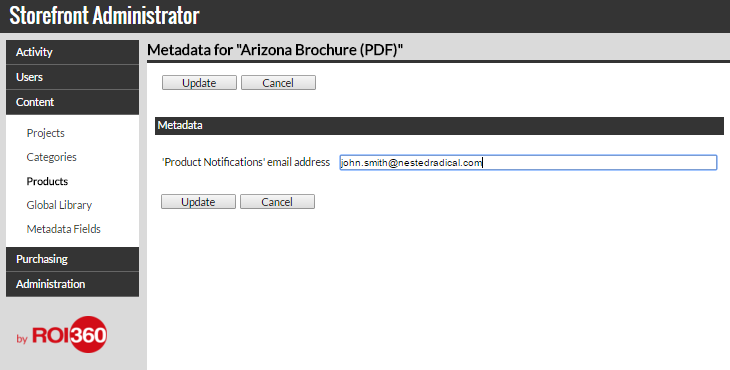
This can be left blank if you do not want to send a specific email for this Template, or filled out with an email address, so that when an order is placed for this Template, the notification will be sent to the specified recipient. To include multiple recipients, separate each address with a comma.
Please note any changes you make to this field require update and release of the Template for the changes to take effect.