 Documentation Summary
Setting Up
Installation Files
The following files must be installed in these directories:
/WebPages/bin/Extensions/Pickers.dll
/WebPages/ROI360/Pickers/ColourPicker.css
/WebPages/ROI360/Pickers/ImagePicker.css
/WebPages/ROI360/Pickers/tick-darkblue-nocircle.svg
Extension Configuration
It is possible to adjust the the logging level in the extension settings.
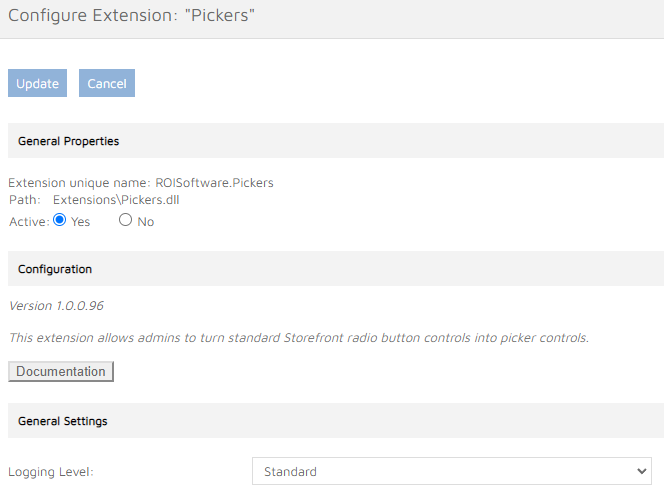
Form Filling Fields Configuration
Pickers are configured in the admin area. Each template’s editing step can contain multiple picker controls. Each such control has to be created as a ‘Radio button’ control type. When the extension is running and ‘Radio buttons’ control type with ‘Get from Table’ option is selected, the ‘Pickers’ drop down list appears under the table of values.
Colour Pickers
When the ‘Colour’ option is selected, a new column is added to the table of values. That column is used for the definition of HTML colour values assigned to each of the values.
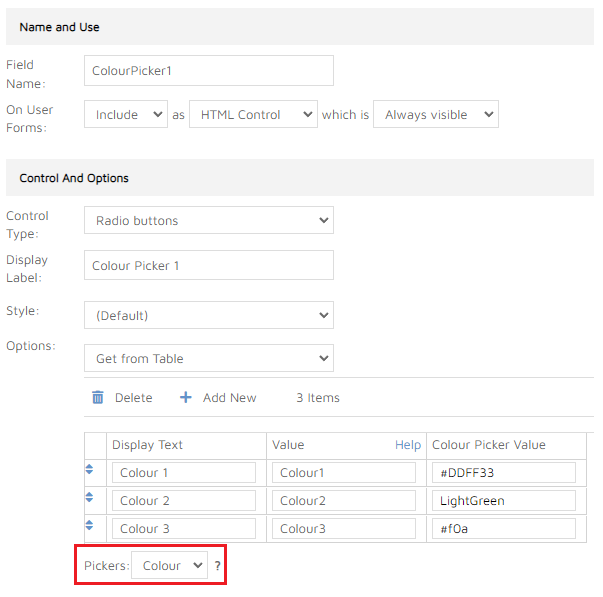
Colour values can be declared in full hexadecimal, shorthand hexadecimal format or as named colours. All values that are recognised as a valid colour value by the target web browser are permitted.
It is important to fill in the display text to make the fields accessible.
Image Pickers
When the ‘Image’ option is selected in the Pickers drop down, a new column is added to the table of values. That column is used for the for the file upload controls that allow the image files to be uploaded to the server and assigned to each of the values in the values table.
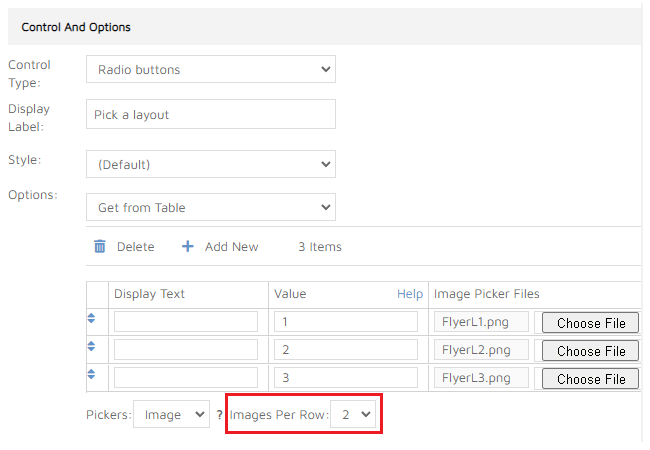
Table rows that already contain uploaded image files display the file name to the left of the upload button.
In the Image Pickers mode another drop down is displayed under the values table - ‘Images Per Row’. The value selected in this drop down determines how many images will be displayed side by side each row when the image picker is shown in the design toolbar.
It is important to fill in the display text to make the fields accessible.
\