 Documentation Summary
Setting Up
Installation
Extension Configuration
To configure the extension, navigate to the extension’s administration page.
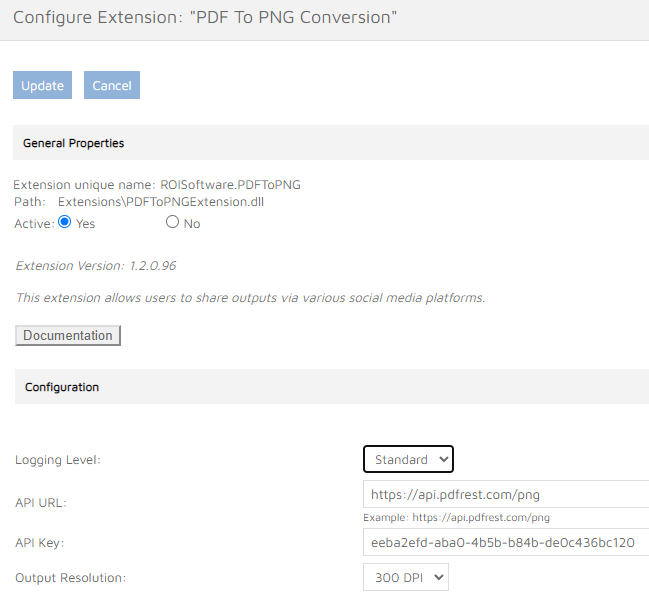
Logging Level
Select logging level depending on the requested detail level of the information logged.
- Standard - only serious errors during the output processing are logged.
- Debug - all events are logged in detail.
The Standard logging level is preferred to make it easier to spot errors.
API URL
Specify the URL of the online pdfRest API service for PDF to PNG conversion (e.g.: ‘https://api.pdfrest.com/png’).
API Key
Specify the API Key to access the pdfRest API service. You can obtain the API Key by setting up an account at the pdfRest web site.
Output resolution
Select one of the values (72 DPI or 300 DPI), 72 DPI is the default.
Template Configuration
Each Template where output should be converted to PNG has to be configured individually. Go to Content > Templates in the admin area and check the ‘Convert Output To PNG’ option in template’s Metadata Fields area.

Installation Files
The following files must be installed in these Storefront directories:
/WebPages/UserROI360PDFToPNGHandler.ashx
/WebPages/ROI360/PDFToPNG/PDFToPNGResource.resx
/WebPages/bin/Extensions/PDFToPNGExtension.dll