Documentation Summary
Setting Up
Installation
The Extension should be installed by using the Manage website, the Exensions > Install/Update option.
Files
Inbox/Design Huddle.pdf
WebPages/bin/Extensions/DesignHuddleExtension.dll
WebPages/Custom/Steps/Design Huddle.html
WebPages/AdminDesignHuddle.aspx
WebPages/ROI360/Design Huddle Integration/Client Secret.txt
WebPages/ROI360/Design Huddle Integration/Interface.ashx
WebPages/ROI360/Design Huddle Integration/Design Huddle.pdf
Extension Configuration
On the admin-site, please visit this page Services > Design Huddle:
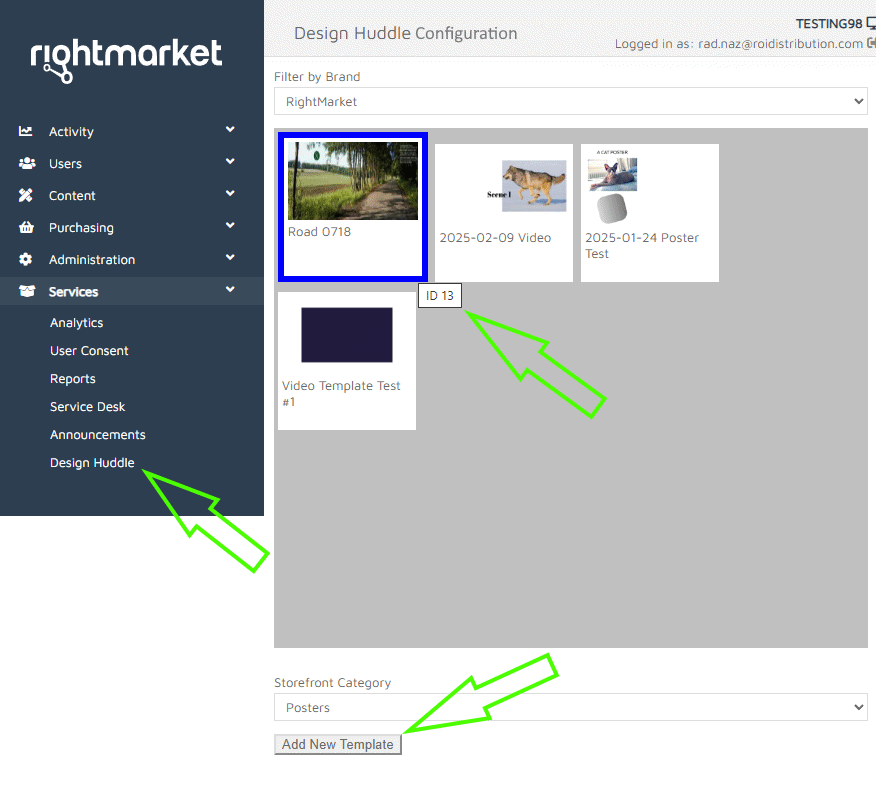
The page contains a list of all available Design Huddle Templates. They are shown after a short communication with the Design Huddle server.
The Template thumbnails can be filtered by the Brand associated with them. Only users having an Account associated with the same Brand can access such a Template. The Brands are associated with Templates and Accounts on the Design Huddle website by a user with the admin privilege.
Clicking a thumbnail selects it. Hovering your mouse cursor above a thumbnail displays the identifier of the template. This is not normally viewable on the Design Huddle website, and is required for integration purposes.
In order to make Template creation easier, the page contains the Add New Template button.
First, select a Design Huddle Template thumbnail. Then select the Category where you wish to place your new Template. Finally, click the Add New Template button.
You can also create and configure your new Template manually which is described below.
Template Configuration
To create a new RightMarket Template pointing to a Design Huddle Template:
- Log in to the admin-site.
- Go Content > Templates > select a Category container > Add New.
- On the Add New Template page select Template Type Hosted PDF and choose the Design Huddle.pdf. If the “Design Huddle.pdf” file is missing from the options, click the top-most Import option and then choose to import the “Design Huddle.pdf” file. If this also fails because the file is missing from the site’s Inbox folder, go back and choose whatever PDF file there is to choose from. The “Design Huddle.pdf” is a dummy file, it’s just a placeholder to satisfy the Hosted PDF standard creation process.
- Next, on the Template Detail page, on the Attributes tab, populate the standard fields as usual.
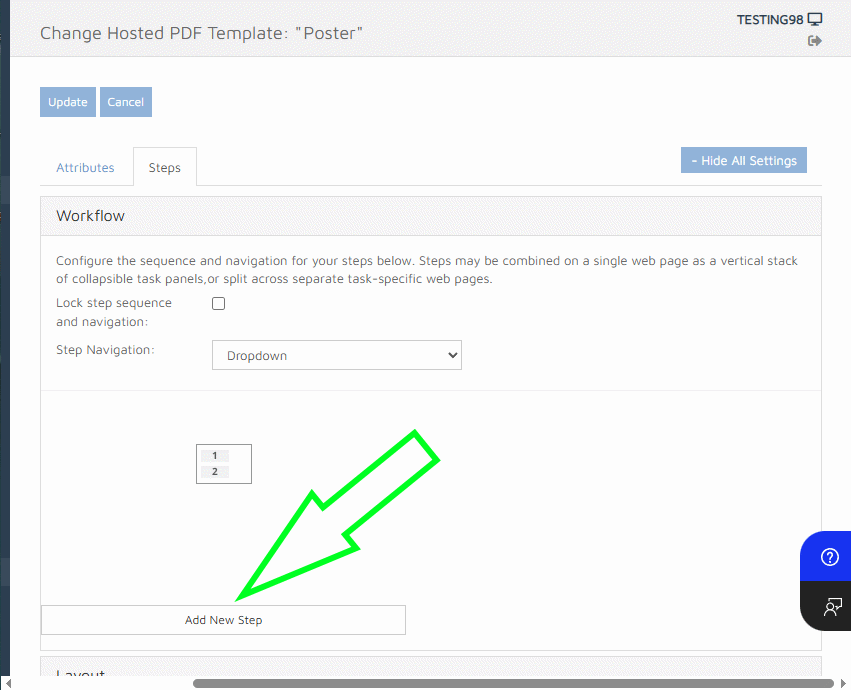
- Click on the Steps tab and then click Add New Step.
- Populate the fields as shown below. Make sure your Description field contains the identifier of your Design Huddle Template. The Type of the step must be Custom. Please choose the Design Huddle.html as the File. Also, ensuring the Step Frame Size large enough, (e.g. 1000x700 pixels).
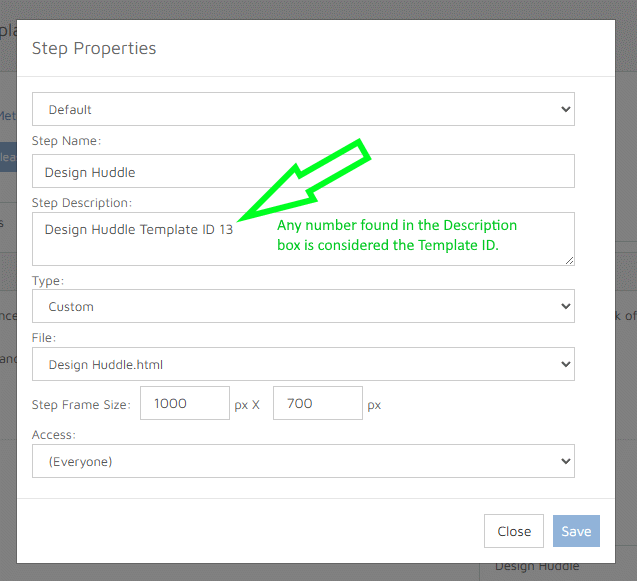
Save and release your Template.
Design Huddle WebSite Template Configuration
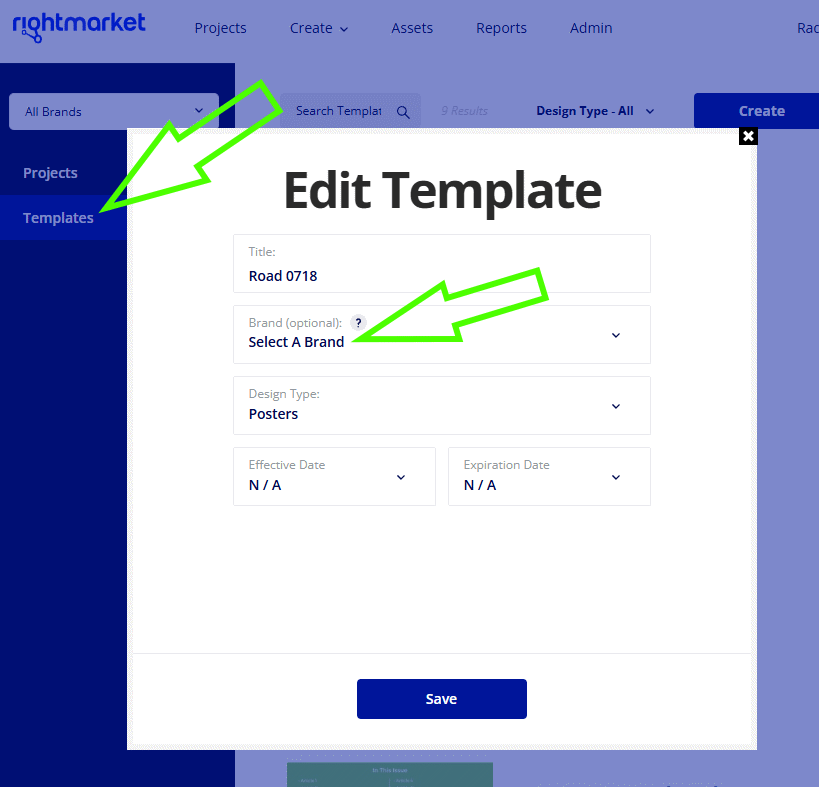
The Design Huddle Template must be configured not to have any Brand selected. Otherwise, it won’t be accessible to standard users on the RightMarket site, the Customise page: